Tech
What is cloud storage? How it works, pros, cons and safety
A plain-English explanation of cloud storage: how your files are stored online, how syncing and backup differ, how safe it is and how to choose a service.
 Bitezine Editorial TeamRankings, reviews & guides 6 min read
 AI generated
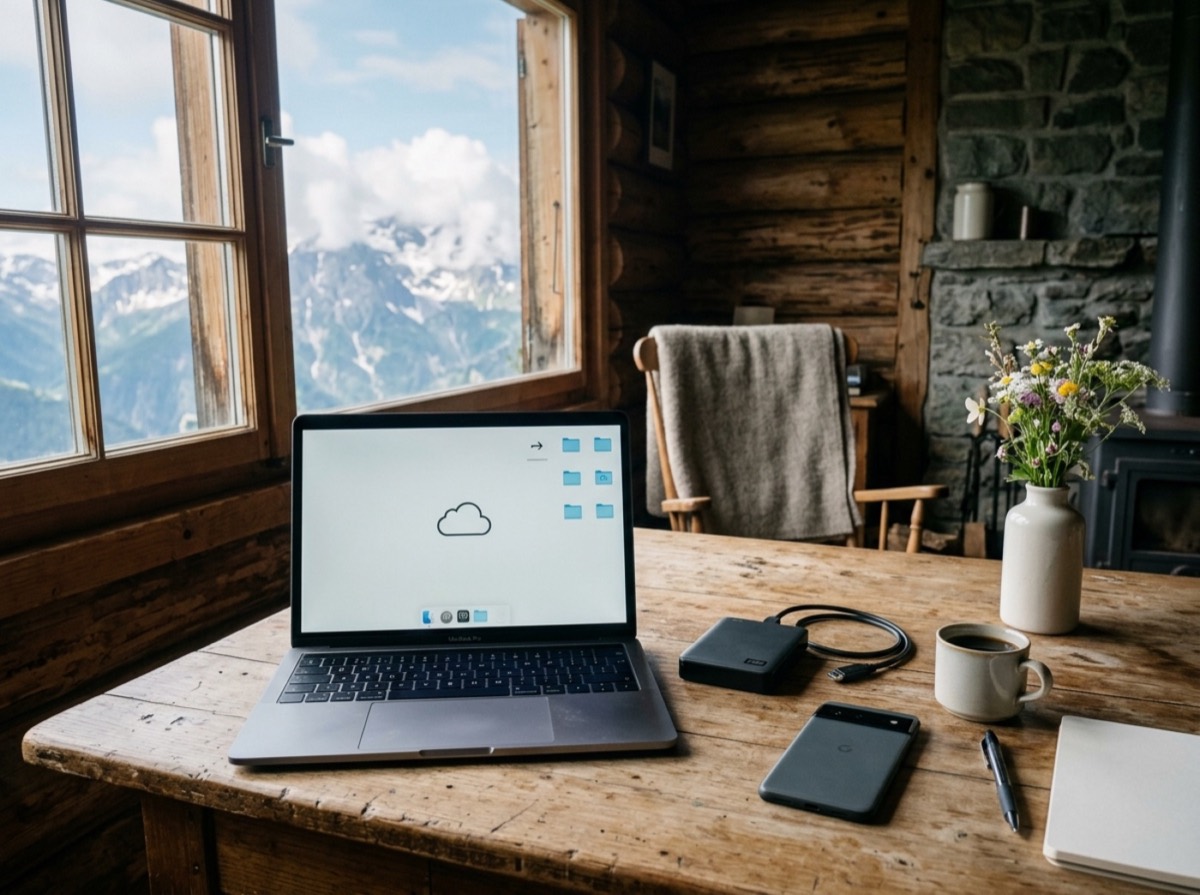
Cloud storage is a way of saving your files on servers run by a provider and reaching them over the internet, instead of keeping them only on your own phone or computer. If your photos appear on a new phone after you sign in, or you can open a document on your laptop that you created on your tablet, you are already using cloud storage.
This guide explains what cloud storage is in plain terms, how it works behind the scenes, how safe it really is, and what to look for when choosing a service for personal files, family photos or a small business.
How does cloud storage work?
When you upload a file, a small program on your device sends it over an encrypted connection to the provider's data centres. There, the file is split, stored on many disks and usually copied to more than one location, so a single failed drive or even a whole building outage does not lose your data.
Your account acts as the key. Whenever you sign in from another device, the service checks who you are and sends the file back. Most services also keep a list of changes, which lets them offer version history and a recycle bin for deleted files.
You do not buy the hardware. You rent space, typically in a free tier with a few gigabytes and paid plans that add more, billed monthly or yearly.
Cloud sync vs cloud backup: an important difference
Many people treat cloud storage as a backup, but most consumer services are built around syncing. Sync keeps the same set of files identical on every device. That is convenient, but it also means that if you delete a file or ransomware encrypts it on one device, the change can spread to all the others.
A true backup keeps separate copies from different points in time, so you can go back to how things looked last week or last month. Some services combine both: they sync, but also keep deleted files and older versions for a limited period. Check how long that period is before you rely on it.
- Sync: same files everywhere, changes spread instantly
- Backup: historical copies you can restore, changes do not overwrite the past
- Archive: long-term storage for files you rarely open, often slower to retrieve
The weak point of cloud storage is usually the account password, not the data centre.
Advantages of cloud storage
The main benefit is that your files are no longer tied to one device. A lost or broken phone becomes an inconvenience rather than a disaster.
- Access from anywhere with an internet connection
- Automatic protection against device loss, theft or failure
- Easy sharing with family, friends or colleagues via links or shared folders
- Frees space on phones and laptops by keeping files online until needed
- No hardware to buy, maintain or replace
- Storage can grow as your needs grow
Disadvantages and risks of cloud storage
Cloud storage is not free of trade-offs. The biggest is dependence: you rely on the provider staying in business, keeping its prices reasonable and not locking your account. Subscription costs also add up over the years, especially for large photo and video libraries.
You also need a decent internet connection. Uploading years of photos on a slow line can take days, and files stored only online are unavailable when you are offline unless you mark them for offline use.
- Ongoing subscription costs
- Needs internet access for files that are not stored locally
- Account lockouts or provider changes can cut off access
- Privacy depends on how the provider handles and encrypts data
- Sync can spread accidental deletions to all devices
Is cloud storage safe?
For most people, reputable cloud storage is safer than keeping files only on a single device. Large providers encrypt data in transit and at rest, run their data centres with strict physical security and store multiple copies.
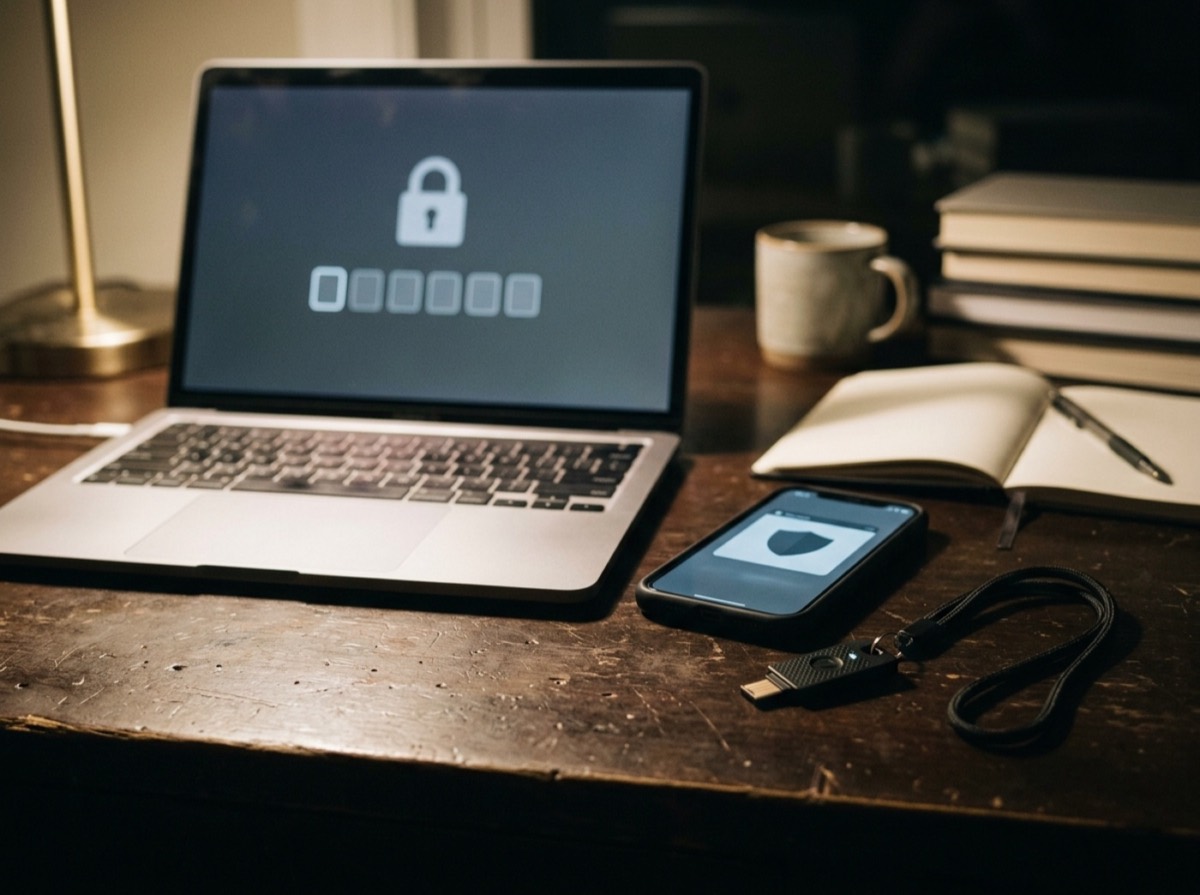
The weak point is usually the account, not the data centre. Most breaches of personal cloud accounts come from reused or stolen passwords and phishing. Protect your account with a long, unique password and turn on two-factor authentication. Review which devices and apps are connected, and remove the ones you no longer use.
If privacy matters most, look for end-to-end or zero-knowledge encryption. With this approach, files are encrypted on your device and the provider cannot read them. The downside is that if you lose your password and recovery key, the provider cannot help you get your files back.
How to choose a cloud storage service
Start with the devices you use. Services built into your phone's operating system are the most convenient for photo backup, while cross-platform services suit households that mix different systems.
In the EU, also consider where your data is stored. Providers with data centres in Europe and a clear GDPR data processing agreement are the safer choice for business files and customer data.
- Storage size and price per year, including family sharing
- Apps for every device you use
- Automatic photo and video backup
- Version history and how long deleted files are kept
- Encryption type, including optional end-to-end encryption
- Data centre location and GDPR compliance
- Two-factor authentication and account recovery options
- Easy export if you want to leave later
How much cloud storage do you need?
Documents take up very little space, so a few gigabytes go a long way if that is all you store. Photos and videos are what fill accounts. A modern phone photo often takes a few megabytes, and a minute of high-resolution video can take far more.
Check how much space your photo library and important folders use today, then add room for a few years of growth. Families who share a plan should add up everyone's libraries. It is usually cheaper to pick a yearly plan that fits than to pay for several small ones.
Should cloud storage be your only backup?
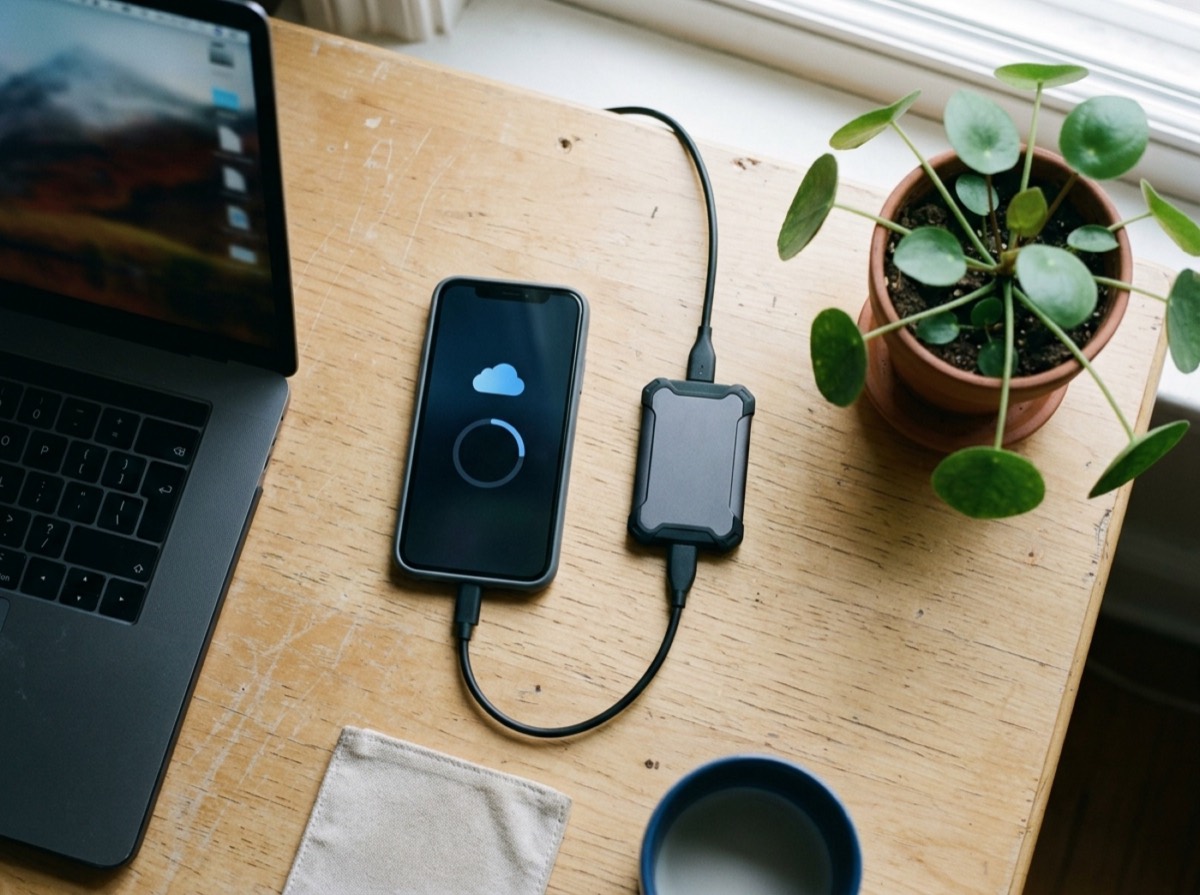
Ideally not. The widely used 3-2-1 rule suggests keeping three copies of important data, on two different types of storage, with one copy off-site. Cloud storage makes an excellent off-site copy. Pair it with an external drive at home for irreplaceable files such as family photos, and you are protected against both hardware failure and account problems.
Frequently asked questions
What is cloud storage in simple words?
+
Cloud storage means saving your files on a company's servers over the internet instead of only on your own device. You can then open them from any phone, tablet or computer where you sign in to your account.
Is cloud storage safe from hackers?
+
Reputable providers use strong encryption and secure data centres, so the biggest risk is usually a stolen password. Use a unique password and two-factor authentication. For sensitive files, choose a service with end-to-end encryption.
What is the difference between cloud storage and cloud backup?
+
Cloud storage with sync keeps the same files on all your devices, so deletions and changes spread everywhere. Cloud backup keeps older copies from different points in time that you can restore. Some services offer both through version history.
What happens to my files if I stop paying for cloud storage?
+
Policies differ, but usually you can still view and download files while uploads stop once you exceed the free limit. After a grace period, some providers may delete data above the free tier. Download everything you want to keep before cancelling.
Can I use cloud storage offline?
+
Only for files saved on your device. Most services let you mark files or folders for offline use, and changes sync once you reconnect. Files kept only online need an internet connection.
Is free cloud storage enough?
+
Free tiers are usually enough for documents and a small number of photos. If you back up a phone's photo and video library, you will likely need a paid plan within a short time.
Cloud storage keeps your files available on every device and protects them when hardware fails, but it works best when you understand what it does and does not do. Secure your account, know whether you are syncing or backing up, check where your data lives and keep a second copy of anything you cannot replace.
How we research: Guides are written from established sources and checked for accuracy. They are general information, not professional advice.
Written by
Bitezine Editorial Team
Rankings, reviews & guides
Our editors research every piece from makers’ documentation, independent tests and owner reports, and update it when products change.