Tech
How to make an old laptop fast again
Practical ways to speed up an old laptop: trim startup programs, free up storage, clean the cooling system and choose the upgrades that make a real difference.
 Bitezine Editorial TeamRankings, reviews & guides 6 min read
 AI generated
If you want to know how to speed up an old laptop, the good news is that most slowdowns have ordinary causes: too many programs launching at startup, a nearly full drive, dust choking the fan, or an aging hard disk. Many of these can be fixed in an evening without spending anything.
Work through the steps below in order. The free fixes come first, then the upgrades that give the biggest return, and finally the clean-slate option when nothing else helps.
Why is my laptop so slow?
Laptops do not slow down simply because they get older. The processor runs at the same speed it did on day one. What changes is the load: more background software, heavier websites, bigger updates, a fuller drive and, often, a cooling system clogged with dust that forces the processor to throttle itself.
Before changing anything, open Task Manager on Windows (Ctrl + Shift + Esc) or Activity Monitor on a Mac and watch the CPU, memory and disk columns while the laptop feels slow. If memory is constantly near its limit, or the disk sits at 100 percent, you already know where the problem is.
Stop programs from launching at startup
Every program that starts with the computer uses memory and processor time before you have even opened anything. On Windows, go to Settings, Apps, Startup, or the Startup apps tab in Task Manager, and switch off anything you do not need immediately. On a Mac, open System Settings, General, Login Items and remove the extras.
Leave security software, audio and touchpad drivers alone. Chat tools, update helpers, cloud sync clients you rarely use and manufacturer extras are usually safe to disable. They will still work when you open them manually.
The processor runs at the same speed it did on day one. What changes is the load.
Free up storage space
A drive that is almost full slows everything down, because the system needs free space for temporary files, updates and memory swapping. Aim to keep at least 15 to 20 percent of the drive free.
On Windows, open Settings, System, Storage and turn on Storage Sense, then review temporary files and the Downloads folder. On a Mac, open System Settings, General, Storage for recommendations. Uninstall programs you no longer use, move large photo and video folders to an external drive, and empty the recycle bin or trash.
- Uninstall unused programs and trial software
- Clear temporary files and old update files
- Move media libraries to external or cloud storage
- Empty the Downloads folder
Tame the browser and check for malware
For many people, the browser is the heaviest program on the machine. Each open tab uses memory, and extensions run in the background on every page. Close tabs you are not using, remove extensions you do not recognize or need, and turn on any memory-saving mode your browser offers.
Unexpected slowness, pop-ups or a fan that runs constantly can also point to malware. On Windows, run a full scan with the built-in Windows Security tool. Keep the operating system updated, since updates also fix performance bugs.
Clean the fan and fix overheating
Heat is a hidden cause of sluggish laptops. When the cooling system is blocked by dust, the processor lowers its speed to protect itself. Signs include a loud fan, a hot underside and performance that drops after a few minutes of work.
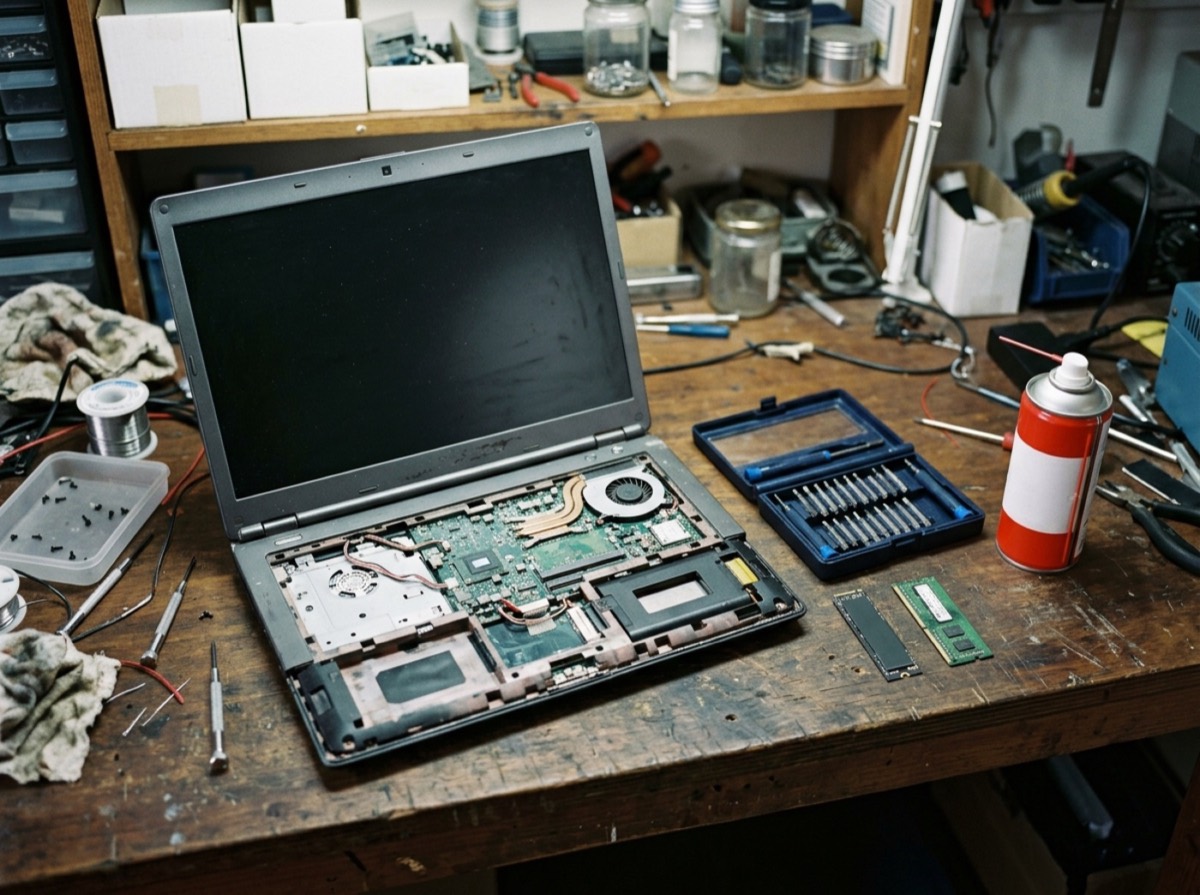
With the laptop shut down and unplugged, blow short bursts of compressed air through the vents, holding the fan still if you can reach it. Use the laptop on a hard, flat surface rather than a bed or sofa. On older machines, a technician can also replace the dried-out thermal paste between the processor and its heatsink, which can bring temperatures down noticeably.
Upgrade to an SSD: the biggest speed boost
If your laptop still uses a spinning hard drive, replacing it with a solid-state drive is the single most effective upgrade you can make. Startup, app launches and file searches can go from painfully slow to near instant. SSDs have become inexpensive, and many older laptops accept a standard 2.5-inch model.
Check your laptop's service manual or specifications to confirm the drive type it supports, since newer models use a smaller M.2 format. You can clone the old drive onto the new one or install a fresh copy of the operating system. On machines that already have an SSD, there is no need to defragment it; the system handles SSD maintenance automatically.
Add more RAM if your laptop allows it
If Task Manager or Activity Monitor shows memory constantly full, more RAM will help, especially when you keep many browser tabs open. For everyday use on a modern operating system, 8 GB is a reasonable minimum and 16 GB is comfortable.
Not every laptop can be upgraded. Many thin models have memory soldered to the motherboard. Look up your exact model to see whether it has a free slot and what type of memory it takes before buying anything.
Reset the operating system for a fresh start
When years of software have piled up, a clean reinstall often restores the speed the laptop had when new. Back up your files first. On Windows, use Settings, System, Recovery, Reset this PC, and choose to remove everything for the cleanest result. On a Mac, erase the drive and reinstall macOS from Recovery.
Also check whether your laptop still receives security updates. If the manufacturer has stopped supporting it, a lightweight operating system designed for older hardware, such as some Linux distributions, can keep it useful for browsing, email and documents.
Frequently asked questions
Is it worth upgrading an old laptop?
+
Usually yes, if the laptop has a hard drive that can be swapped for an SSD or memory that can be expanded. Those two upgrades cost far less than a new machine. If the processor is very old or the laptop no longer gets security updates, replacing it may make more sense.
Will a factory reset make my laptop faster?
+
Often, yes. A reset removes accumulated programs, background services and clutter. It will not fix a failing hard drive or overheating, so check those as well.
Why did my laptop get slow after an update?
+
Right after a major update, the system often indexes files and finishes background tasks, which can take a day or so. If the slowness continues, check for driver updates from the manufacturer and look at which processes are using resources.
How much RAM does a laptop need?
+
For web browsing, email and office work, 8 GB is a practical minimum. 16 GB gives headroom for many tabs, photo editing and multitasking. Heavy video or creative work benefits from more.
Do PC cleaner programs speed up a laptop?
+
Most of what they do can be done with built-in tools, and some are unnecessary or even harmful. Registry cleaning in particular offers little benefit. Stick to the operating system's own storage and security tools.
Should I defragment my laptop?
+
Only if it has a spinning hard drive, and Windows already does this on a schedule. Do not manually defragment an SSD. The built-in Optimize Drives tool handles SSD maintenance correctly.
An old laptop rarely needs to be thrown away just because it feels slow. Trim startup programs, clear space, clean the vents and watch what uses your memory. If that is not enough, an SSD and extra RAM can make an aging machine feel new, and a clean reinstall clears out years of buildup. Try the free steps first; you may be surprised how much speed was there all along.
How we research: Guides are written from established sources and checked for accuracy. They are general information, not professional advice.
Written by
Bitezine Editorial Team
Rankings, reviews & guides
Our editors research every piece from makers’ documentation, independent tests and owner reports, and update it when products change.