Tech
Two-factor authentication explained: what it is and how to set it up
What two-factor authentication is, how the different methods compare, and a step-by-step guide to turning it on for the accounts that matter most.
 Bitezine Editorial TeamRankings, reviews & guides 5 min read
 AI generated
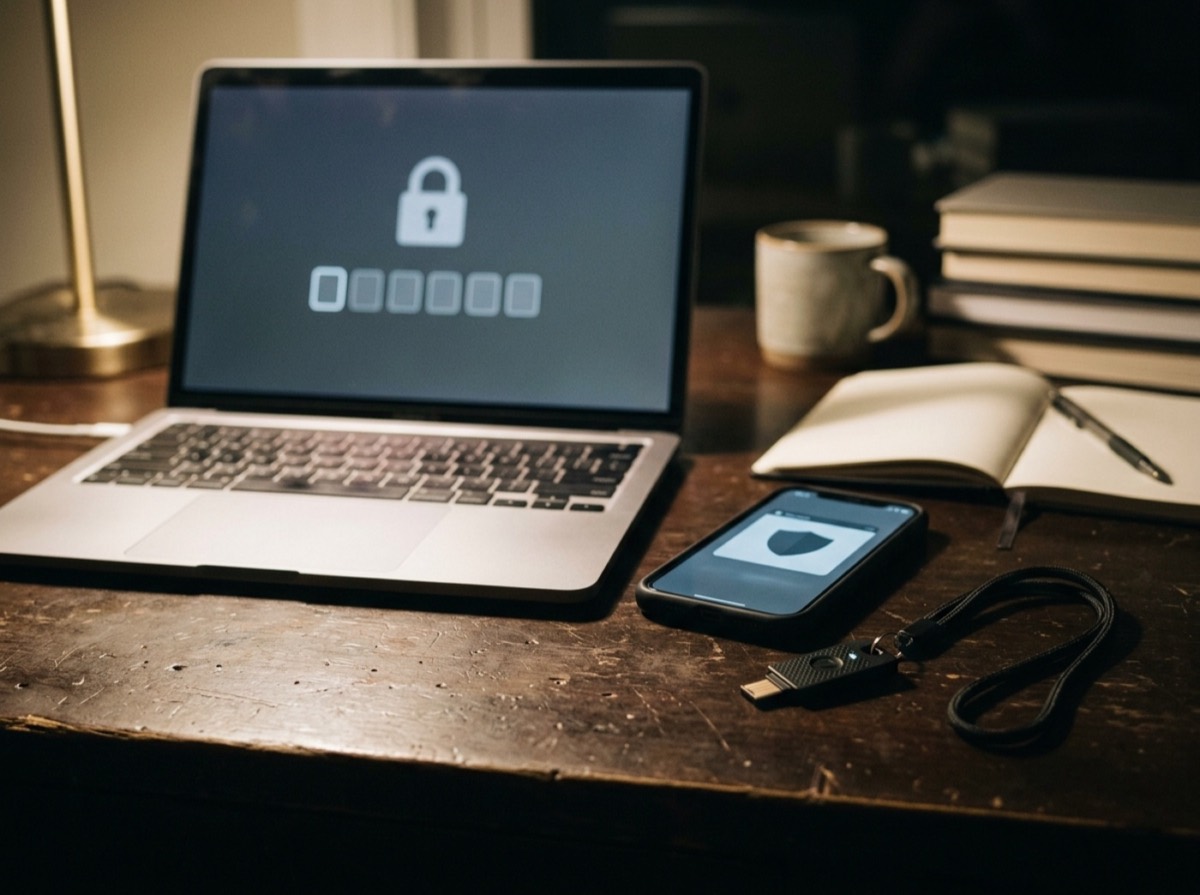
Two-factor authentication is an extra lock on your online accounts: after entering your password, you prove who you are a second way, usually with a code or a tap on your phone. Even if someone steals or guesses your password, they still cannot get in without that second factor.
It is one of the most effective security steps an ordinary person can take, and it takes only a few minutes per account. Here is how it works, which method to choose, and how to set it up without locking yourself out.
What is two-factor authentication?
Security experts group login proofs into three kinds of factor: something you know (a password or PIN), something you have (a phone or security key) and something you are (a fingerprint or face). Two-factor authentication, often shortened to 2FA, combines two different kinds.
A password plus a security question is not true 2FA, because both are things you know. A password plus a code from your phone is, because the attacker would need both your secret and your physical device.
2FA, two-step verification and MFA: what's the difference?
Multi-factor authentication (MFA) is the umbrella term for any login that uses two or more factors. Two-factor authentication is the most common form of it. Two-step verification is the name some companies use for the same idea, and the terms are used almost interchangeably in account settings.
Whatever the label, look for a setting under Security, Login or Sign-in in your account and turn it on.
A stolen password is far less useful when the thief still needs the phone in your pocket.
The main 2FA methods compared
Not all second factors are equally strong. Any of them is far better than a password alone, but it is worth choosing the strongest option each service offers.
- Text message (SMS) codes: easy and widely supported, but codes can be intercepted or redirected through SIM swapping
- Email codes: convenient, but only as safe as your email account
- Authenticator app codes: six-digit codes generated on your phone that change every 30 seconds and work offline
- Push notifications: tap approve on a trusted device; convenient, but never approve a prompt you did not trigger
- Hardware security keys: a small physical key you plug in or tap; highly resistant to phishing
- Passkeys: a newer login method that uses your device and its screen lock, and resists phishing by design
Is SMS two-factor authentication safe?
SMS codes stop the most common attacks, such as criminals using passwords leaked from other sites. Their weakness is the phone number itself. In a SIM swap, a criminal convinces a mobile carrier to move your number to their SIM card and then receives your codes.
If a service offers only SMS, use it; it is still much better than nothing. If it offers an authenticator app, a security key or passkeys, switch to one of those. Ask your mobile carrier about adding a PIN or port-out protection to your account as well.
How to set up two-factor authentication step by step
The process is similar on almost every website and app. Using an authenticator app as the example:
- Install an authenticator app from your phone's official app store
- Sign in to the account on a computer and open its security or sign-in settings
- Choose two-factor authentication or two-step verification and select the authenticator app option
- Scan the QR code shown on screen with the authenticator app
- Type the six-digit code the app shows to confirm it is linked
- Save the backup codes the service gives you somewhere safe and offline
Which accounts should get 2FA first?
Start with the accounts that can unlock everything else. Your main email account is the top priority, because password reset links for nearly every other service arrive there. Next come your phone's platform account (the one tied to your backups and device), banking and payment accounts, and your password manager if you use one.
After that, add social media, shopping sites that store payment details, cloud storage and work accounts. Many of these will prompt you to turn on 2FA once you look in their security settings.
How to avoid getting locked out
The main risk with 2FA is losing access to your own second factor. Backup codes are the safety net: each one works once and lets you in without your phone. Print them or write them down and store them somewhere secure, not in a screenshot on the same phone.
Add a second method where possible, such as a backup phone number or a second security key. Before replacing or resetting your phone, check whether your authenticator app can transfer or back up its codes, and move them to the new device before wiping the old one.
Watch out for 2FA scams
Criminals know 2FA works, so they try to trick people into handing over the code. No legitimate company will call, text or email asking you to read out a verification code. If someone asks, hang up.
Be equally careful with push prompts. If your phone suddenly shows login approval requests you did not start, someone has your password. Deny the request and change that password right away.
Frequently asked questions
What happens if I lose my phone with 2FA on it?
+
Use one of your saved backup codes or a backup method, such as a second phone number or security key, to sign in. Then remove the lost phone from your account and set up 2FA on the new device. Without any backup option, you will need to go through the service's account recovery process, which can take days.
Is two-factor authentication worth it?
+
Yes. It blocks the large majority of automated account takeovers, including attacks that use passwords leaked from other websites. The small extra step at login is a good trade for that protection.
Can two-factor authentication be hacked?
+
It can be bypassed in some cases, for example through SIM swapping or phishing sites that capture codes in real time. Security keys and passkeys resist these attacks best. Even weaker 2FA methods make an account a much harder target.
How does an authenticator app work without internet?
+
When you scan the QR code, the app and the service share a secret key. Both use that key and the current time to calculate the same six-digit code, so no connection is needed. That is why the phone's clock must be accurate.
Are passkeys better than two-factor authentication?
+
Passkeys combine something you have (your device) with your fingerprint, face or PIN, so they already provide strong multi-factor protection and resist phishing. Where a service supports them, they are an excellent choice, and you can keep 2FA on as well.
Do I need 2FA if I have a strong password?
+
Yes. A strong password protects against guessing, but not against phishing, data breaches or malware that captures what you type. The second factor protects you when the password itself is exposed.
Two-factor authentication is a small habit with a big payoff. Turn it on for your email first, then your financial and cloud accounts, choose the strongest method each service supports, and keep your backup codes somewhere safe. Once it is set up, you will barely notice it, while anyone holding a stolen password will find the door still locked.
How we research: Guides are written from established sources and checked for accuracy. They are general information, not professional advice.
Written by
Bitezine Editorial Team
Rankings, reviews & guides
Our editors research every piece from makers’ documentation, independent tests and owner reports, and update it when products change.