Tech
How to transfer data to a new phone without losing anything
How to transfer data to a new phone: iPhone to iPhone, Android to Android and between platforms, plus a checklist for chats, two-factor codes and your eSIM.
 Bitezine Editorial TeamRankings, reviews & guides 6 min read
 AI generated
Learning how to transfer data to a new phone properly saves hours of frustration and protects the things that are hardest to replace: photos, messages, contacts and the codes that let you sign in to your accounts. Modern phones make most of the move automatic, but a few items still slip through if you do not plan for them.
This guide covers the preparation, the main transfer methods for iPhone and Android, switching between the two, and a final checklist before you reset or sell your old phone.
Before you start: prepare your old phone
A little preparation makes the transfer smoother and gives you a safety net if something goes wrong.
- Update both phones to the latest software version, since transfer tools work best when versions match.
- Charge both phones, or keep them plugged in, because a large transfer can take an hour or more.
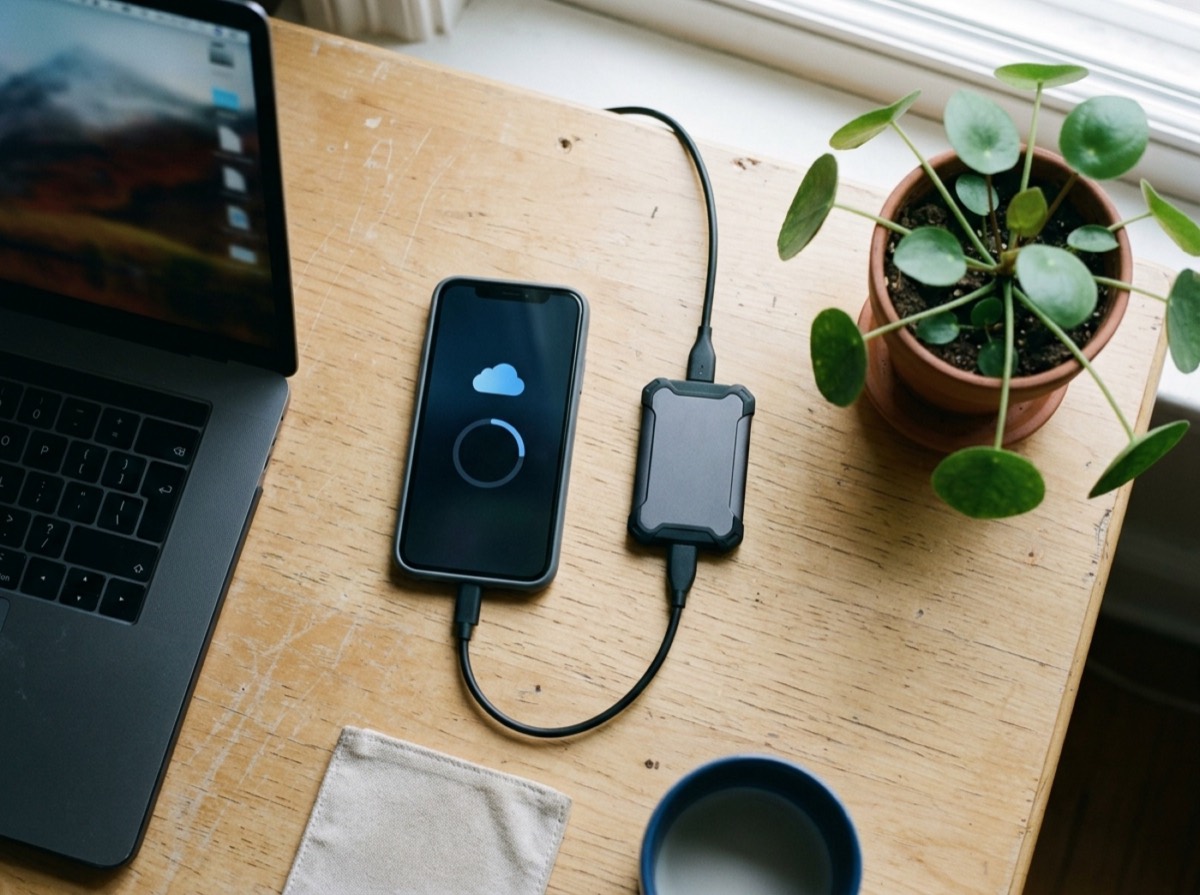
- Make a full backup of the old phone to the cloud or a computer.
- Check that you know the passwords for your main phone account and other important accounts.
- Note which apps keep their own data, such as messaging, banking and two-factor authentication apps, and check their transfer instructions.
- Free up space on the new phone if it has less storage than the old one.
How to transfer data from iPhone to iPhone
The easiest route is direct transfer during setup. Turn on the new iPhone and place it next to the old one with Bluetooth enabled. The old phone offers to set up the new device; confirm, scan the animation that appears on the new screen with the old phone's camera, and enter your old passcode. You can then choose to transfer directly from the old phone, which copies apps, settings, photos and messages over Wi-Fi or a cable.
Alternatively, restore from a recent cloud backup during setup, or from a backup made on a computer. A direct transfer usually brings across the most up-to-date data, while a backup restore lets you keep using the old phone until the new one is ready.
Apps downloaded from the store reinstall automatically, and most sign-ins stored in the system keychain carry over. Banking apps typically ask you to log in and verify again.
Only reset the old phone once you have checked that everything made it across.
How to transfer data from Android to Android
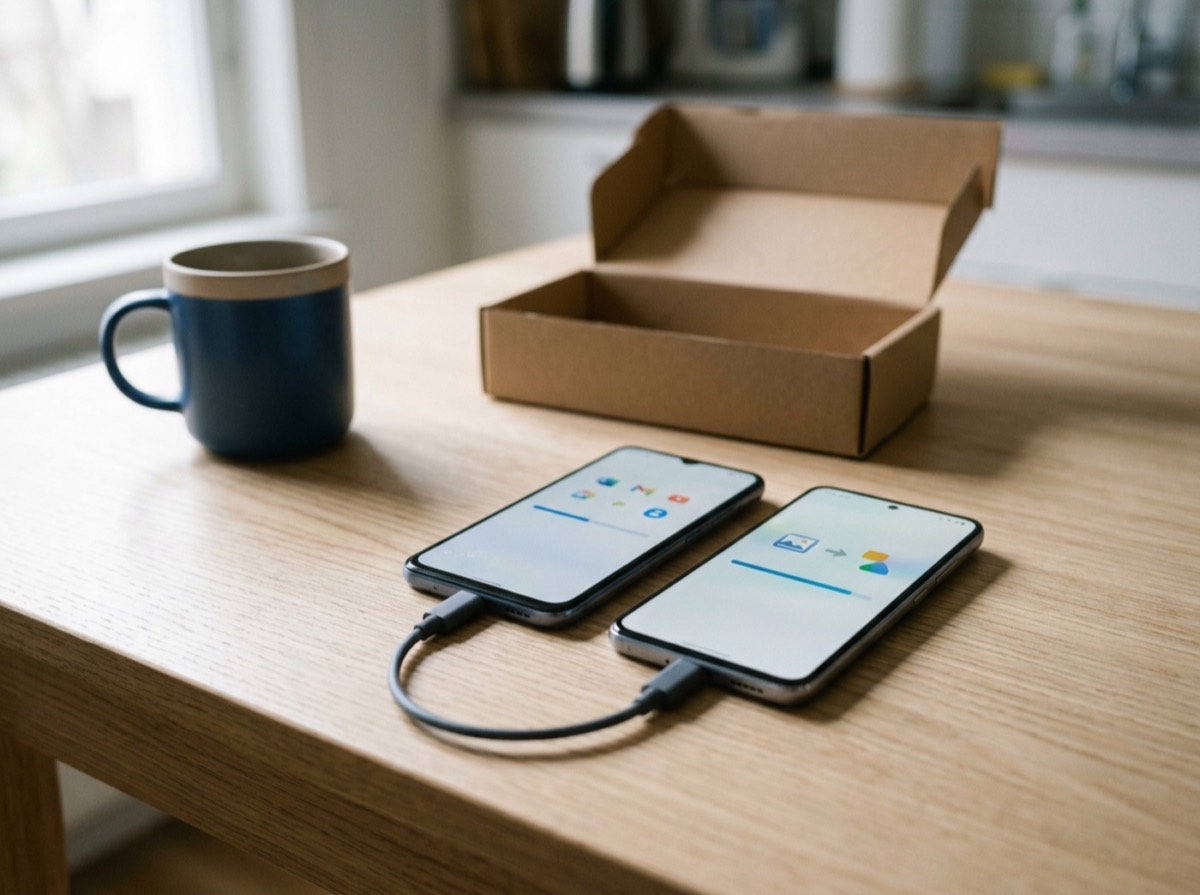
Android phones offer a copy option during the first setup. Choose to copy apps and data, then connect the two phones with a USB cable or pair them wirelessly when prompted. A cable is usually faster and more reliable for large photo libraries. You can pick what to move: apps, contacts, messages, call history, photos, settings and more.
If you skip this step, you can restore from your cloud account backup instead, which brings back contacts, calendar, app list, many settings and, depending on your backup options, photos and messages. Some phone makers also provide their own transfer tool that moves extra data such as home screen layouts and certain app settings between their own devices.
How to switch between Android and iPhone
Moving from Android to iPhone: during iPhone setup, choose the option to move data from Android. Apple provides an official migration app for Android that connects the two phones over a private Wi-Fi link and moves contacts, message history, photos and videos, calendars, mail accounts and some free apps that exist on both platforms.
Moving from iPhone to Android: most recent Android phones offer to copy data from an iPhone during setup, either with a cable or by signing in to your cloud account. This typically brings contacts, photos, videos, calendar events and messages. Before switching, turn off the iPhone's messaging service linked to your phone number, otherwise texts from other iPhone users may not reach your new Android phone.
Paid apps and in-app purchases do not transfer between platforms, and some app data stays behind. Check each important app for an export or account-based sync option.
Don't forget chats, two-factor codes and your SIM
Three items cause most post-transfer headaches.
Messaging apps often store chat history in their own backup rather than in the phone backup. Open each app's settings, make a fresh chat backup, and follow its steps to restore on the new phone. Moving chat history between iPhone and Android may need the app's specific transfer option.
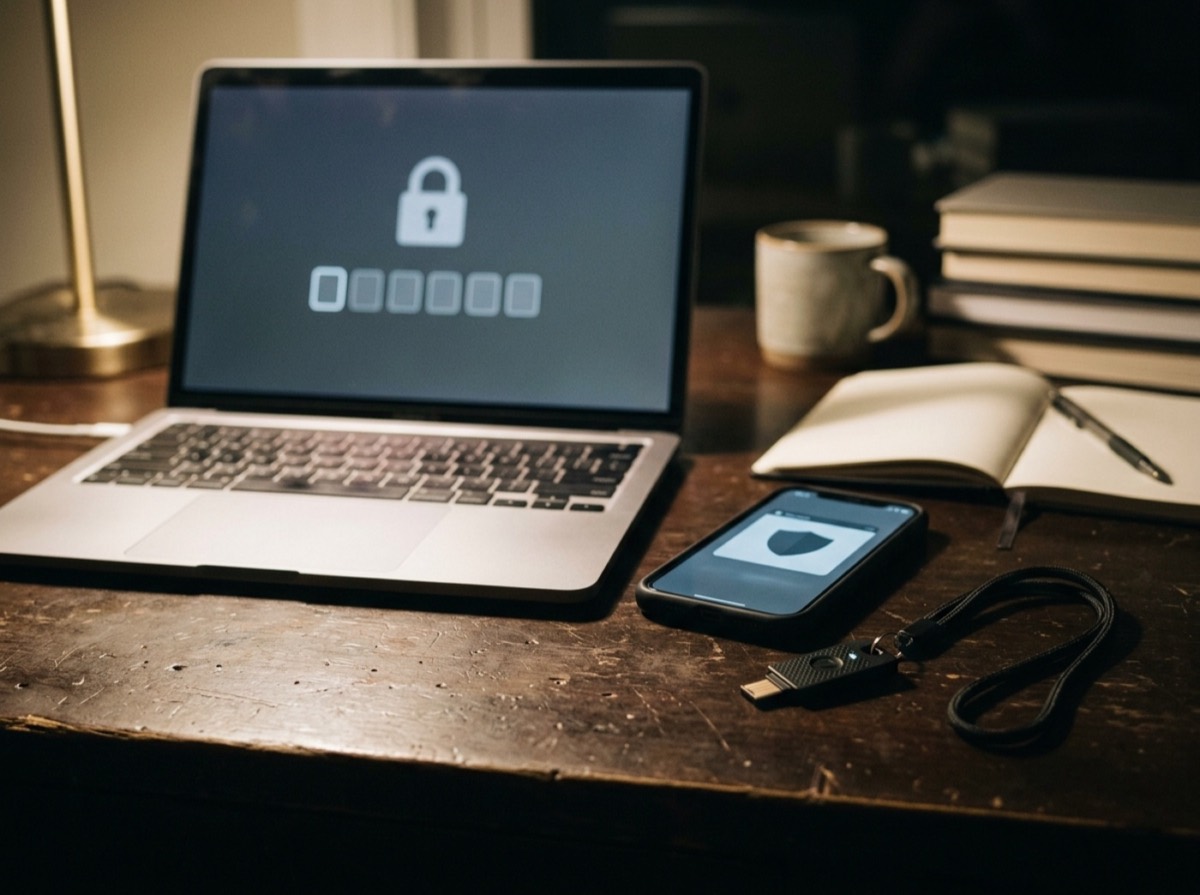
Two-factor authentication codes are critical. If you use an authenticator app, check whether it syncs codes to an account or offers an export. If it does not, log in to each service and move 2FA to the new phone before wiping the old one, or keep your recovery codes at hand. Losing these codes can lock you out of accounts.
Finally, move your SIM. A physical SIM simply goes into the new phone if the size matches. For an eSIM, use the transfer option during setup or ask your operator for a new profile, and do not delete the old eSIM until the new phone shows a signal.
Check everything arrived
Before you let go of the old phone, spend ten minutes on a quick check.
- Compare photo counts and scroll back to your oldest pictures.
- Open your contacts and messages and look for gaps.
- Sign in to banking, payment and work apps, and re-add payment cards to your phone wallet.
- Pair your watch, earbuds and car again.
- Confirm that notifications, alarms and ringtones are set the way you like.
What to do with your old phone
Once you are confident the move is complete, sign out of your main phone account on the old device and turn off its find-my-device feature. This removes the activation lock, which would otherwise make the phone unusable for the next owner. Unpair any smartwatch, then perform a factory reset from the settings menu. Remove the physical SIM and any memory card.
After the reset, the phone is ready to sell, trade in, pass on or recycle. Keeping it for a week or two as a fallback is sensible if you have space in a drawer.
Frequently asked questions
How do I transfer everything from my old phone to my new phone?
+
Use the transfer option during the new phone's setup, either directly from the old phone or from a recent backup. Then check messaging apps, authenticator apps and your SIM separately, since they can need extra steps.
Can I transfer data to a new phone after setup?
+
On Android, many phones let you run the copy tool later from settings. On iPhone, the direct transfer is part of setup, so you would need to erase the new phone and start again, which is quick if it is still empty.
Is it faster to transfer data with a cable?
+
Usually yes. A wired connection is often faster and more stable than wireless, especially for large photo and video libraries. Wireless transfer works well for smaller amounts of data.
Will my messages transfer from Android to iPhone?
+
Standard text messages can move with the official migration tool during iPhone setup. Chats in third-party messaging apps need that app's own transfer or backup process.
How do I move my two-factor authentication codes to a new phone?
+
Check whether your authenticator app offers cloud sync or an export. If not, log in to each account on the new phone and set up two-factor authentication again before wiping the old one, and keep your recovery codes safe.
What should I do before selling my old phone?
+
Make sure all data is on the new phone, sign out of your accounts, switch off the find-my-device feature, unpair accessories and perform a factory reset. Remove the SIM and any memory card before handing it over.
Moving to a new phone is mostly automatic now, but the details still matter. Prepare with a fresh backup, use the built-in transfer during setup, give chats, authentication codes and your SIM extra attention, and only reset the old phone once you have checked that everything made it across.
How we research: Guides are written from established sources and checked for accuracy. They are general information, not professional advice.
Written by
Bitezine Editorial Team
Rankings, reviews & guides
Our editors research every piece from makers’ documentation, independent tests and owner reports, and update it when products change.