Tech
How to set up a new laptop: a step-by-step checklist
A complete checklist for setting up a new laptop: first boot, updates, security, backups, transferring files and removing clutter on Windows and Mac.
 Bitezine Editorial TeamRankings, reviews & guides 6 min read
 AI generated
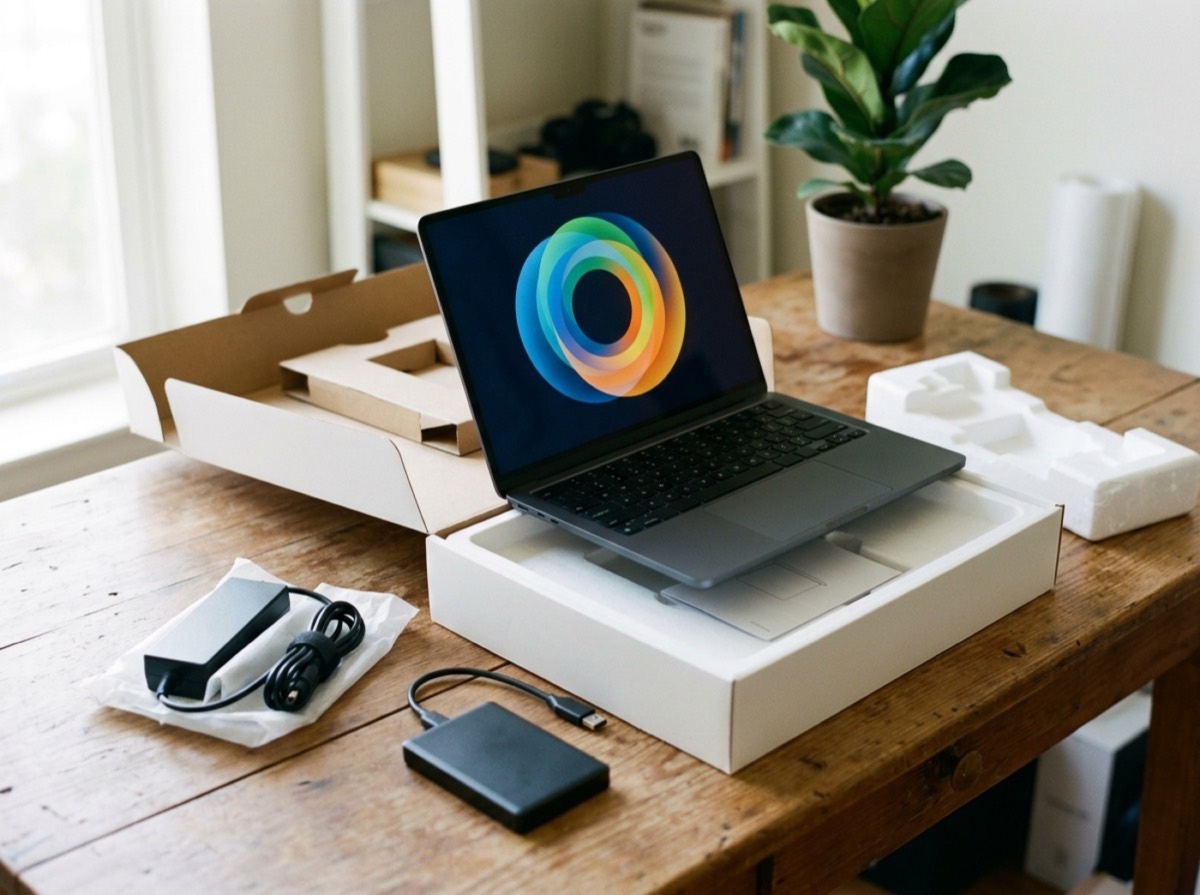
Knowing how to set up a new laptop properly saves you hours of frustration later. The first-start wizard gets you to the desktop in minutes, but it skips several steps that matter: installing updates, turning on encryption, setting up backups, cleaning out preinstalled extras and moving your files over safely.
This checklist works for both Windows laptops and Macs. Set aside an hour or two, plug in the charger, and work through it in order. By the end your laptop will be secure, up to date and ready for daily use.
Before you start: check the box and prepare
Unpack carefully and keep the box and receipt until the return period has passed. Inspect the laptop for dents, scratches or dead pixels, and check that the keyboard, trackpad, ports and speakers work. If something is wrong, it is much easier to return a laptop you have not heavily customised.
Have a few things ready: your Wi-Fi password, your account credentials, and access to your phone for two-factor codes. If you are moving from an older computer, make a fresh backup of it before you begin.
First boot: accounts and privacy choices
Connect the charger and switch the laptop on. The setup wizard asks for your region, keyboard layout and network, then asks you to sign in. On a Mac you sign in with an Apple Account; on Windows, the standard setup expects a Microsoft account. Signing in enables syncing, device location and easier recovery, which is useful for most people.
Read the privacy screens instead of clicking through them. You will be asked about location services, diagnostic data, advertising identifiers and speech recognition. Turn off anything you do not want; all of it can be changed later in the settings.
Choose a strong password or PIN and set up fingerprint or face sign-in if the laptop supports it. Biometrics make it easy to lock the laptop every time you step away.
A new laptop has often waited months in a warehouse, so updates come before anything else.
Install all system updates first
A new laptop has often been sitting in a warehouse for months, so its software is rarely current. Before installing anything else, open Windows Update or Software Update on the Mac and install everything available, restarting as often as needed. Repeat until no further updates appear.
On Windows laptops, also check the manufacturer's support tool or website for firmware and driver updates, which can fix battery, sleep and Wi-Fi issues. Turn on automatic updates so you stay protected without thinking about it.
Turn on security: encryption, firewall and Find My
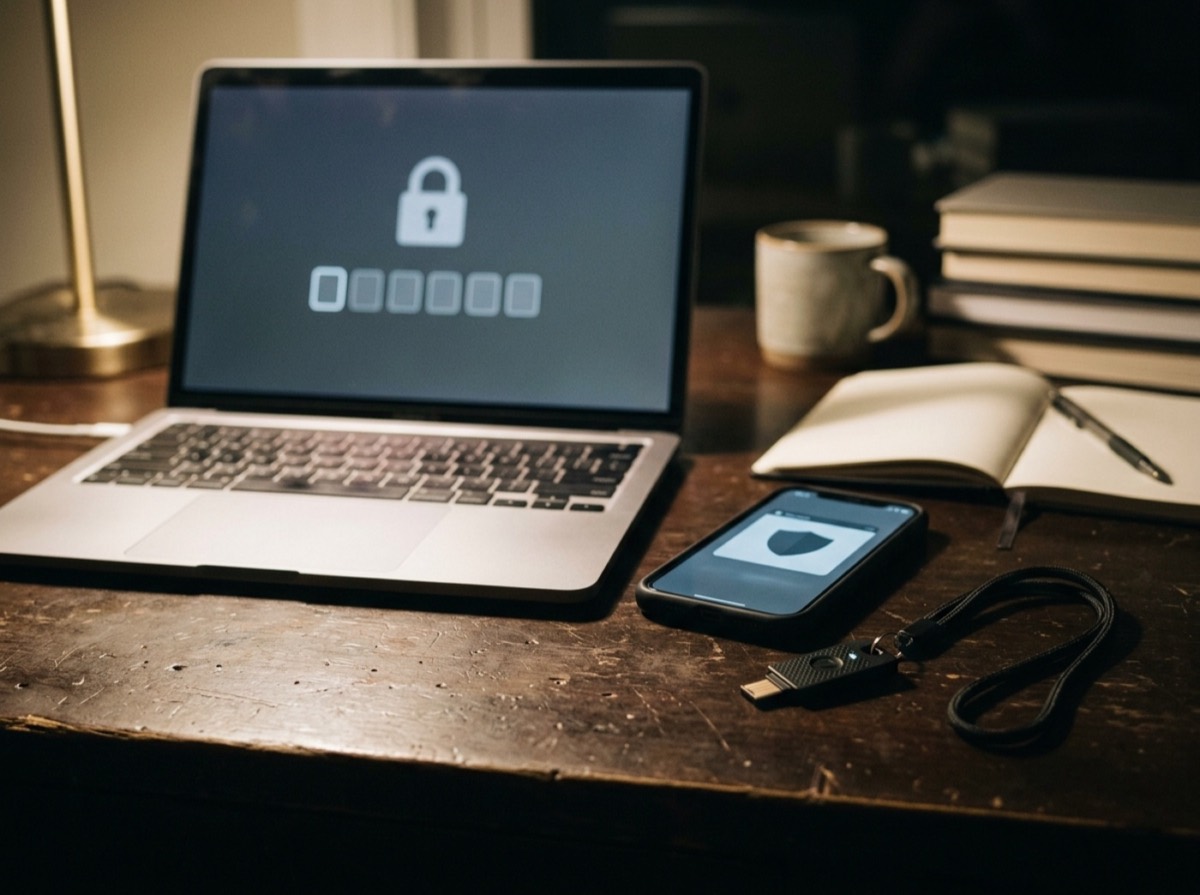
Disk encryption protects your files if the laptop is lost or stolen. On a Mac, FileVault handles this; on Windows, look for Device Encryption or BitLocker, depending on the edition. Many new laptops enable it automatically when you sign in, but confirm it is on and store the recovery key somewhere safe, away from the laptop.
Check that the built-in firewall is enabled and that the system's built-in malware protection is active. For most home users, the tools that come with a modern operating system provide solid baseline protection.
Finally, turn on the device-finding feature for your platform. It lets you locate, lock or erase the laptop remotely.
- Disk encryption on, recovery key stored safely
- Firewall enabled
- Built-in malware protection active
- Device-finding feature enabled
- Screen lock after a short period of inactivity
Remove bloatware and trial software
Many Windows laptops arrive with preinstalled trials, games and utilities you never asked for. They take up space, show pop-ups and sometimes run in the background. Go through the list of installed apps in Settings and uninstall anything you do not recognise or need.
Be careful with anything from the laptop manufacturer that manages drivers, battery, keyboard lighting or audio. If you are unsure what a program does, look it up before removing it. Macs ship with far less extra software, and Apple's own apps can usually stay.
Transfer your files and settings from the old laptop
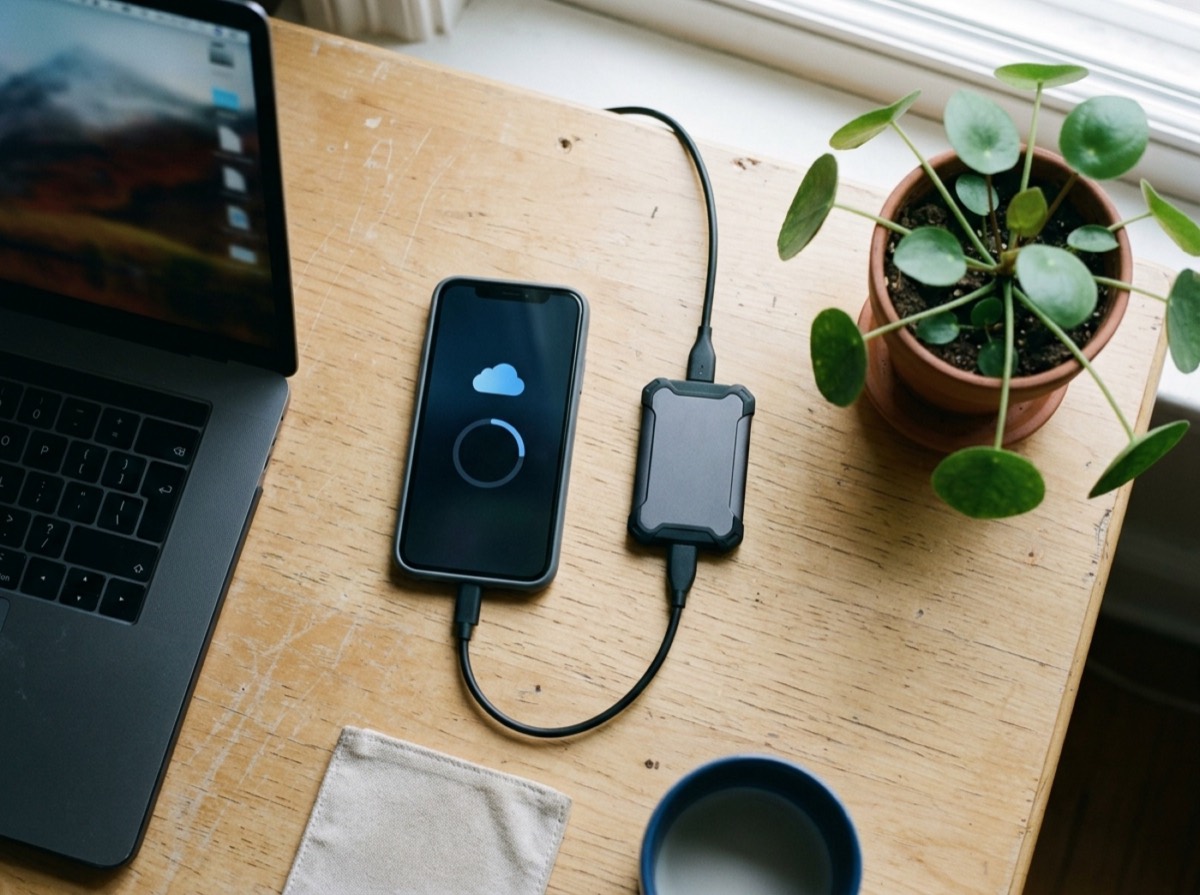
There are several ways to move your data, and the best one depends on how much you have. Cloud storage is the easiest if your files are already synced: sign in and let them download. For large libraries, an external drive is faster and does not depend on your internet connection.
Macs include Migration Assistant, which can copy apps, settings and files from another Mac or from a Windows PC. Windows offers its own backup and restore options tied to your Microsoft account. Whatever you use, check afterwards that important folders, browser bookmarks and saved passwords arrived intact.
Reinstall your programs from official sources rather than copying old installers, so you get current, safe versions.
Set up backups from day one
A new laptop can still fail, be stolen or be damaged. Set up backups now, while everything is fresh. Macs include Time Machine for backups to an external drive; Windows offers File History and cloud backup options. Pairing a local backup with a cloud copy follows the well-known 3-2-1 idea: three copies, on two types of storage, with one kept off-site.
Run the first backup today and check that it completes.
Finishing touches for comfort and battery
Now make the laptop yours. Adjust display scaling and brightness, set up the trackpad gestures you like, and choose your default browser. Turn on battery health features if your laptop offers them, such as charging limits for laptops that mostly stay plugged in.
Modern lithium-ion batteries do not need a special first charge or full discharge cycles, so simply use the laptop normally. Once everything works, reset and wipe your old laptop before selling, donating or recycling it.
Frequently asked questions
What is the first thing to do with a new laptop?
+
After the setup wizard, install all system updates and restart until none remain. Then confirm disk encryption is on, enable the device-finding feature and set up a backup before you move in your files.
Do I need to charge a new laptop fully before using it?
+
No. Lithium-ion batteries do not need an initial full charge or calibration cycle. You can plug in and use the laptop straight away.
Do I need antivirus software on a new laptop?
+
For most home users, the built-in protection in current versions of Windows and macOS is a solid baseline, as long as you keep the system updated. Businesses and people with specific risks may want additional tools.
How do I transfer everything from my old laptop to a new one?
+
Use cloud storage if your files are already synced, an external drive for large amounts of data, or the built-in migration tools. Mac users can use Migration Assistant, which also works from a Windows PC. Check that files, bookmarks and passwords arrived before wiping the old machine.
Can I set up a Windows laptop without a Microsoft account?
+
Standard Windows setup is designed around a Microsoft account, and the options for a local-only account have become increasingly limited. A Microsoft account also enables device encryption key backup and device finding, so most home users are better off using one.
Should I remove preinstalled apps from a new laptop?
+
Yes, remove trials and extras you do not use, since they take space and can run in the background. Keep manufacturer tools that handle drivers, battery or hardware features, and research any program you are unsure about before uninstalling.
Setting up a new laptop properly takes a little longer than clicking through the wizard, but the payoff is real: a secure, updated machine with backups in place and no clutter slowing it down. Follow the checklist in order, keep your recovery key safe and wipe your old device before it leaves your hands.
How we research: Guides are written from established sources and checked for accuracy. They are general information, not professional advice.
Written by
Bitezine Editorial Team
Rankings, reviews & guides
Our editors research every piece from makers’ documentation, independent tests and owner reports, and update it when products change.