Tech
How to free up storage on your phone without losing what matters
Phone storage full? A step-by-step guide to clearing space on iPhone and Android: find the space hogs, clean up photos, apps, chats and cached data safely.
 Bitezine Editorial TeamRankings, reviews & guides 7 min read
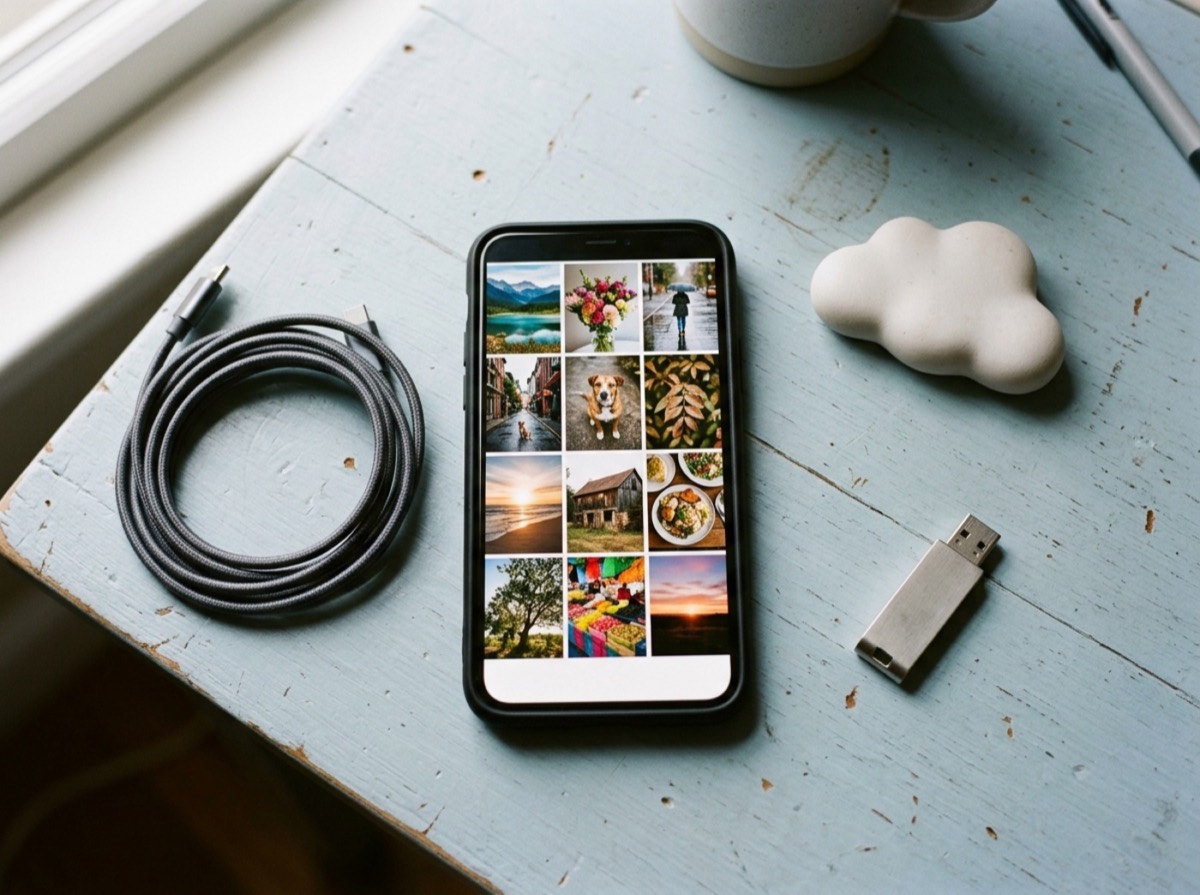 AI generated
Learning how to free up storage on your phone is usually prompted by a warning at the worst moment: the camera refuses to record, an update will not install, or apps start closing on their own. The good news is that most phones fill up for the same few reasons, and you can reclaim several gigabytes in twenty minutes without deleting anything you care about.
This guide works for both iPhone and Android. It starts with finding out what is actually using the space, then moves through photos, apps, messages, downloads and cached data, in roughly the order that frees the most room for the least effort.
Step one: check what is filling your phone storage
Guessing wastes time. Both systems show a breakdown by category and by app, so start there. On an iPhone, open Settings, then General, then iPhone Storage. On most Android phones, open Settings and then Storage; some manufacturers place it under Battery and device care or a similar menu.
Give the screen a moment to calculate. You will see a coloured bar split into photos, apps, messages, system files and other categories, followed by a list of apps sorted by size. That list is your to-do list. In most cases the top three or four entries account for the majority of the used space.
Both systems also offer built-in suggestions on this screen, such as removing apps you have not opened in months or reviewing large videos. They are worth reading, but check each one before tapping, because a suggestion is not the same as a safe choice for you.
Clean up photos and videos first
Photos and videos are the biggest storage users on most phones, and video is the heavier of the two by far. A few minutes of high-resolution video can take more space than hundreds of photos.
If you use a cloud photo backup, you can often keep only smaller, optimised copies on the phone while full-resolution originals stay online. On iPhone this is the Optimise iPhone Storage option in the photo settings. On Android, the storage menu can remove local copies of photos that are already backed up. Before you delete anything locally, open the cloud library in a browser and confirm that the photos are really there.
Then work through the clutter that nobody needs: burst shots, near-identical duplicates, screenshots, blurry pictures and screen recordings. Sort your library by size or filter for videos to find the heaviest files quickly.
- Delete screenshots you no longer need; they pile up quietly
- Keep the best frame of each burst and remove the rest
- Move long videos to a computer or external drive
- Empty the Recently Deleted album; iPhone keeps removed photos there for 30 days, and many Android galleries have a similar bin
Deleting a few long videos often frees more room than clearing hundreds of photos.
Offload or uninstall apps you do not use
Scroll through the app list from your storage screen and be honest about what you use. Games are often the largest items, sometimes several gigabytes each, and many people keep games they finished long ago.
iPhone offers a useful middle ground called Offload App. It removes the app itself but keeps its documents and data, so reinstalling later brings you back to where you were. You can also switch on automatic offloading for apps you have not used in a while. On Android, uninstalling removes the app, but anything you bought stays linked to your account and can be downloaded again at no cost.
Look closely at the size of each app's documents and data, not only the app itself. A small app can hold a surprisingly large amount of downloaded content.
Shrink messaging and chat storage
Chat apps are a common hidden storage hog. Every photo, video, voice note and sticker that friends send is saved on the phone, and busy group chats can grow to many gigabytes over a few years.
Most messaging apps include their own storage manager in their settings. It lists your chats by size and lets you delete large media files without removing the text of the conversation. It is also worth turning off automatic media download for groups, so videos only download when you tap them.
In the built-in messages app, you can tell the phone to keep messages for a limited period, such as a year, instead of forever. On iPhone the setting is under Messages, then Keep Messages. Review the large attachments list there too.
Clear downloads, offline media and cached data
Downloaded episodes, offline playlists, maps and films are easy to forget. Open each streaming, podcast and map app and remove content you have already watched or listened to. Many of these apps have a setting that deletes episodes automatically after playback.
Next, check the downloads folder in your file manager. It often contains PDFs, installers and attachments you opened once and never needed again.
On Android you can clear an app's cache from Settings, then Apps, then the app, then Storage. Clearing cache removes temporary files and does not sign you out or delete your content. Clearing data is different: it resets the app completely, so only use it when you mean to. iPhone does not offer a cache button for most apps; offloading and reinstalling an app is the usual way to reset its stored files. Browser caches can be cleared in the browser's own settings.
Why is system data or other storage so large?
Both platforms reserve space for the operating system, and a category often called System Data or Other holds caches, logs, voice assets and temporary files. It grows and shrinks on its own, and it can look alarmingly large on a nearly full phone.
You cannot clear this category directly, but a few things help. Restarting the phone lets the system clean up temporary files. Deleting large chat media and offline content often reduces it too. If it remains very large for weeks, backing up the phone and restoring it gives the system a clean start, though that is a last resort rather than a routine step.
How to keep your phone storage from filling up again
Once you have cleared space, a few habits keep it that way. Aim to leave some headroom, because phones need free space for updates, caches and new photos, and they tend to slow down when storage is almost completely full.
When you next buy a phone, choose storage based on how you actually use it. If you shoot a lot of video, keep offline media or play large games, pay for the larger capacity. Many phones cannot be upgraded later, and on models without a memory card slot the storage you buy is the storage you keep.
- Review your storage screen once a month
- Turn on automatic cloud photo backup and optimised storage
- Disable automatic media downloads in group chats
- Let streaming apps delete finished episodes automatically
- Copy important videos to a computer or external drive regularly
Frequently asked questions
What should I delete first when my phone storage is full?
+
Start with videos, unused apps and chat media, since those are usually the largest items. Check the storage screen in Settings to see which apps use the most space, then work down the list. Deleting a few long videos often frees more room than hundreds of photos.
Does clearing cache delete anything important?
+
No. Clearing an app's cache removes temporary files that the app can recreate, and you stay signed in with your content intact. Clearing app data or storage is different, because it resets the app to a fresh install and removes local settings and downloads.
Why does my phone say storage is full when I have deleted things?
+
Deleted photos often sit in a Recently Deleted folder for up to 30 days, still using space. Empty that folder, then restart the phone so the system can recalculate storage and clean temporary files. Large chat attachments and offline downloads are also easy to miss.
What is the difference between offloading and deleting an app on iPhone?
+
Offloading removes the app but keeps its documents and data on the phone. When you reinstall it, you pick up where you left off. Deleting removes both the app and its data from the device.
Can I delete photos from my phone and keep them in the cloud?
+
Yes, if they are fully backed up. Confirm the photos appear in your cloud library through a browser before removing them. Be careful with photo services that sync deletions, because deleting on the phone can remove the cloud copy too; use the optimised storage or free-up-space options instead.
How much free storage should I keep on my phone?
+
Keep a reasonable buffer, ideally several gigabytes, so the phone can install updates, save new photos and manage caches. Phones can become sluggish and updates can fail when storage is almost completely full.
Freeing up storage on your phone is less about deleting everything and more about knowing where the space goes. Check the storage screen, deal with videos, apps and chat media first, and set up a few automatic options so the problem does not return. A monthly five-minute review is enough to keep your phone fast, updated and ready for the next photo.
How we research: Guides are written from established sources and checked for accuracy. They are general information, not professional advice.
Written by
Bitezine Editorial Team
Rankings, reviews & guides
Our editors research every piece from makers’ documentation, independent tests and owner reports, and update it when products change.