Guides
Why your Wi-Fi is slow and how to fix it
Slow Wi-Fi usually comes down to distance, interference, crowded channels or old gear. Here is how to find the cause and fix it step by step.
 Bitezine Editorial TeamRankings, reviews & guides 6 min read
 AI generated
Slow Wi-Fi is one of the most common home tech complaints, and the cause is rarely a mystery once you know where to look. In most homes, the problem is the router's position, a crowded wireless channel, interference from other devices or equipment that has simply aged out.
This guide helps you work out whether the slowdown comes from your Wi-Fi or from your internet connection itself, then walks through the fixes in order, starting with the free ones.
Is it your Wi-Fi or your internet connection?
Wi-Fi is the wireless link between your devices and your router. Your internet connection is the line from the router to your provider. They can fail separately, so the first job is to find out which one is slow.
Run a speed test in your browser while standing next to the router, then connect a computer directly to the router with an Ethernet cable and test again. If the wired result is also slow, the problem is your internet plan or your provider. If the wired result is fast but wireless speeds drop as you move away, the problem is your Wi-Fi, and the rest of this guide applies.
Restart and update your router
It sounds too simple, but a restart clears memory, drops stuck connections and often fixes sudden slowdowns. Unplug the router and modem, wait about 30 seconds, then plug the modem in first and the router once the modem has fully started.
Next, log into the router's settings page and check for firmware updates. Manufacturers fix bugs, improve stability and patch security holes through these updates. Many routers can update automatically; turn that option on if yours offers it.
The speed you pay for arrives at the router; Wi-Fi decides how much of it reaches your device.
Where is the best place to put a router?
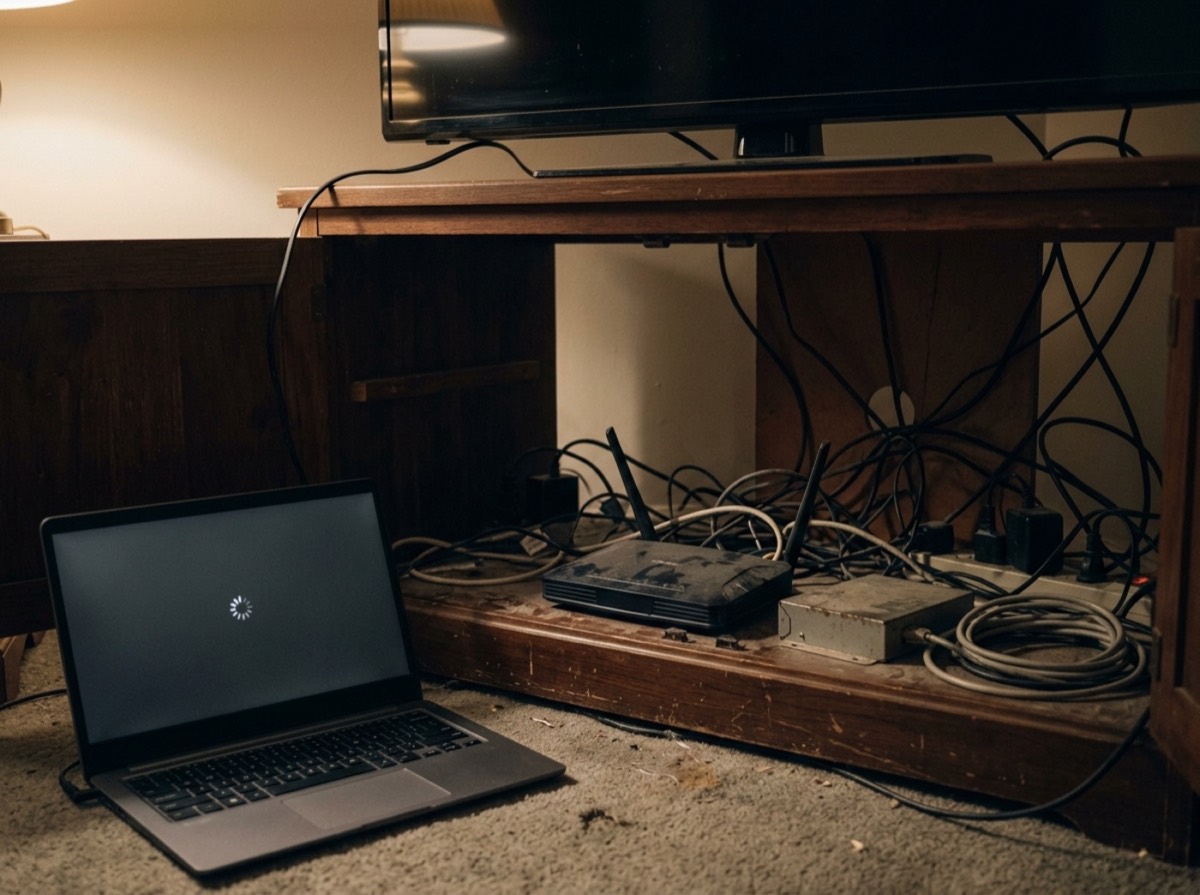
Wi-Fi signals weaken with distance and lose strength passing through walls, floors and large objects. A router hidden in a cupboard, behind a TV or at the far end of the home will always struggle.
Move it to a central, open, raised spot, ideally on a shelf in the middle of the home and on the floor where you use the internet most. If it has external antennas, angling some vertically and some horizontally can improve coverage across different floors.
- Keep it off the floor and out of cabinets
- Avoid placing it next to metal objects, mirrors or fish tanks
- Keep it away from microwaves, cordless phone bases and baby monitors
- Think about thick concrete, brick and stone walls between the router and your devices
2.4 GHz vs 5 GHz: use the right band
Most routers broadcast on more than one frequency band. The 2.4 GHz band reaches further and passes through walls better, but it is slower and shared with many household devices. The 5 GHz band is much faster but has a shorter range. Newer routers may also offer 6 GHz, which is faster still and less crowded, but has the shortest range of the three.
If your phone or laptop is near the router, the higher band will almost always feel faster. Many routers combine the bands under one network name and steer devices automatically. If yours does not, connect nearby devices to the faster band and leave the 2.4 GHz band for distant rooms and smart home gadgets.
Change your Wi-Fi channel to avoid interference
In apartments and dense neighbourhoods, dozens of networks may compete on the same channels. The result is congestion that slows everyone down, especially in the evening.
Your router's settings let you choose a channel or pick one automatically. On 2.4 GHz, channels 1, 6 and 11 do not overlap, so pick whichever is least busy. On 5 GHz there are many more channels to choose from. A Wi-Fi analyser tool built into some routers, or available for laptops and phones, shows which channels nearby networks use. After switching, test your speed again at the same spot to compare.
Too many devices or a bandwidth hog?
Every phone, TV, console, camera and smart speaker shares the same connection. Large downloads, cloud backups, game updates and 4K streaming can eat most of your capacity without anyone noticing.
Check the list of connected devices in your router's settings. Remove devices you do not recognise and change your Wi-Fi password if needed, using WPA3 or WPA2 security. Schedule big backups and updates for overnight, and use the router's quality of service (QoS) feature, if it has one, to prioritise video calls or work devices.
How to fix Wi-Fi that is slow in one room
If the signal is fine near the router but weak in a bedroom or home office, you have a coverage problem rather than a speed problem. Moving the router helps, but larger or multi-storey homes often need extra hardware.
A mesh Wi-Fi system uses several units that work as one network and hand your devices between them as you move. It is usually the best option for large homes. A range extender is cheaper and works for a single weak spot, though it can reduce speeds. Powerline adapters send data through your electrical wiring, and a wired Ethernet cable remains the fastest and most reliable option for a desk, TV or console that never moves.
When to upgrade your router or call your provider
Routers age. An older model may not support current Wi-Fi standards, may lack security updates and may struggle with the number of devices in a modern home. If your router is many years old and the steps above have not helped, a newer model that supports a recent Wi-Fi standard can make a noticeable difference, provided your devices support it too.
If wired speeds are consistently below what you pay for, contact your provider. Share your test results, ask them to check the line and the modem, and ask whether your plan matches how many people and devices use it.
Frequently asked questions
Why is my Wi-Fi slow when my internet plan is fast?
+
The speed you pay for arrives at the router, but Wi-Fi can lose much of it on the way to your device. Distance, walls, interference, crowded channels and older devices are the usual reasons. Test with a cable to confirm the plan speed is really reaching the router.
Why is my Wi-Fi slower at night?
+
Evenings are peak time, so neighbouring networks are busier and your provider's network carries more traffic. Changing to a less crowded channel or the 5 GHz band helps with local congestion. If wired speeds also drop, the slowdown is on the provider's side.
How often should I restart my router?
+
Restarting when you notice slowdowns is usually enough, and some people do it once a month as routine. Many modern routers manage themselves well, so frequent restarts should not be necessary. If you need to restart often, check for firmware updates or consider replacing the router.
Is 2.4 GHz or 5 GHz better?
+
5 GHz is faster and less crowded, which makes it better for streaming, gaming and video calls near the router. 2.4 GHz reaches further and passes through walls more easily. Use 5 GHz close by and 2.4 GHz for distant rooms or simple smart devices.
Do Wi-Fi extenders actually work?
+
Yes, for a single weak spot, but they often cut the available speed because they have to relay the signal. For larger homes or several dead zones, a mesh system usually performs better. Place any extender halfway between the router and the weak area, where the signal is still strong.
Can a neighbour's Wi-Fi slow down mine?
+
Yes. Networks on the same or overlapping channels interfere with each other, which is common in apartment buildings. Switching to a less busy channel or a higher frequency band usually reduces the effect.
Slow Wi-Fi is usually fixable without spending anything. Test wired and wireless speeds to find where the problem lives, restart and update the router, give it a central open spot, and use the right band and channel. If coverage is still patchy, add a mesh system or a cable where it matters most, and only then look at a new router or a conversation with your provider.
How we research: Guides are written from established sources and checked for accuracy. They are general information, not professional advice.
Written by
Bitezine Editorial Team
Rankings, reviews & guides
Our editors research every piece from makers’ documentation, independent tests and owner reports, and update it when products change.