Tech
How to clean screens and keyboards safely without damaging them
How to clean screens and keyboards on laptops, phones, monitors and TVs: the right cloths and cleaners, what to avoid, and how to disinfect safely.
 Bitezine Editorial TeamRankings, reviews & guides 5 min read
 AI generated
Learning how to clean screens and keyboards properly matters more than it sounds. Keyboards collect crumbs, skin oil and bacteria, and screens pick up fingerprints and dust that make them harder to read. The wrong cleaner, however, can strip coatings, cloud a display or send liquid into places it should never go.
This guide covers laptops, desktop monitors, TVs, phones, tablets and keyboards. The methods are simple and use items most households already have, with a few firm rules about what to avoid.
What you need to clean screens and keyboards
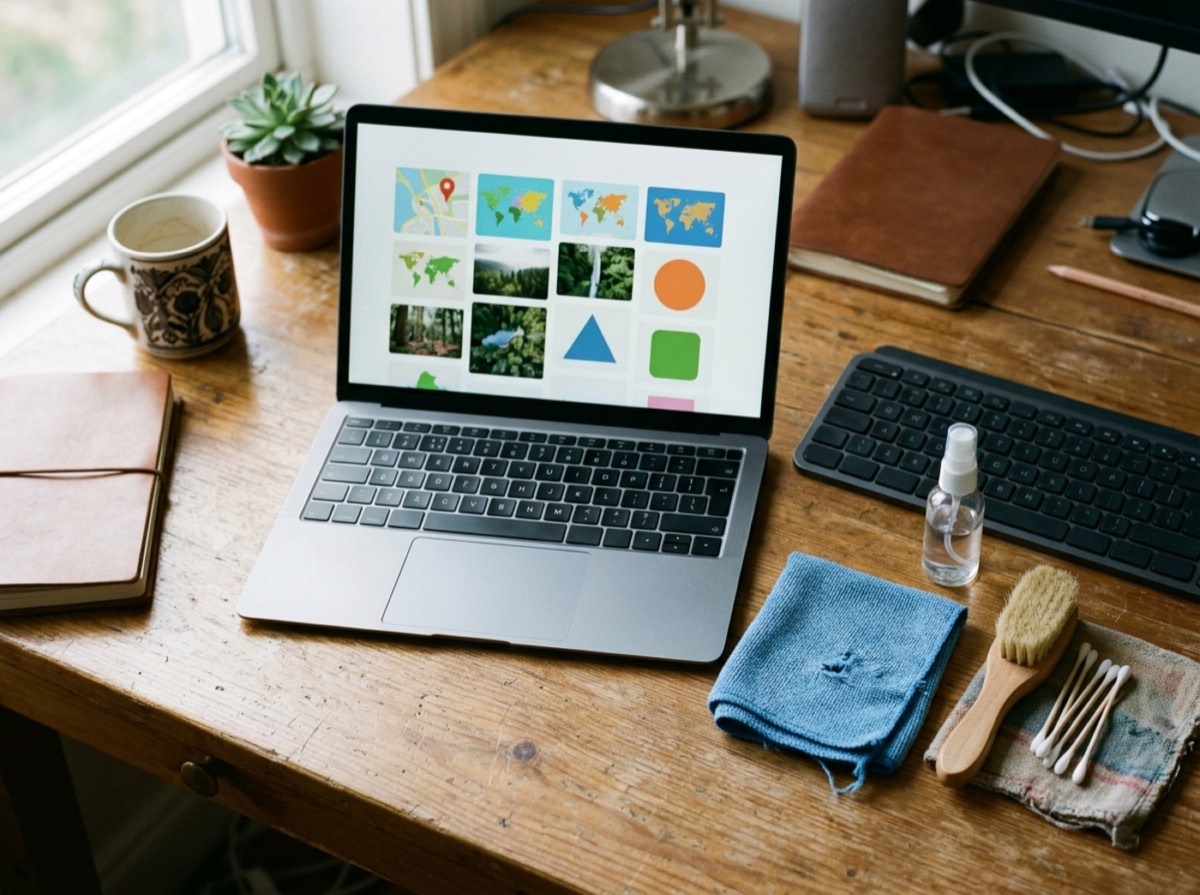
A small kit covers almost every device. The most important item is a soft, lint-free microfibre cloth, the kind supplied with glasses. Paper towels and tissues may feel soft but can leave scratches and fibres on delicate screen coatings.
For disinfecting, major manufacturers such as Apple say that wipes with 70 percent isopropyl alcohol or 75 percent ethyl alcohol can be used gently on hard, non-porous surfaces. Always check your own device's guidance, because some coated or fabric surfaces need gentler care.
- Two clean microfibre cloths, one for damp and one for dry wiping
- Distilled or clean tap water
- 70 percent isopropyl alcohol wipes for disinfecting hard surfaces
- A soft brush or clean, dry paintbrush
- Cotton swabs for edges and gaps
- Compressed air, used carefully, for keyboards
What never to use on screens and electronics
Many household cleaners are too harsh for electronics. Screens often have anti-reflective or oil-repellent coatings that ammonia, bleach and solvents can damage permanently. Liquids are the other big risk: a small amount seeping into a port or under a key can cause lasting damage.
- Window or glass cleaners containing ammonia
- Bleach or hydrogen peroxide
- Acetone, paint thinner and other solvents
- Abrasive powders, scouring pads and paper towels
- Aerosol sprays aimed at the device
- Spraying liquid directly onto a screen or keyboard
- Submerging any part of a device
Put the cleaner on the cloth, never on the screen.
How to clean a laptop screen or computer monitor
Switch off the laptop or monitor and unplug it. A dark screen shows dirt more clearly, and cleaning a powered-off display is safer. Let it cool if it has been running.
Start dry. Wipe gently with a microfibre cloth in straight lines or small circles to remove dust. Do not press hard: LCD panels can be damaged by pressure. For fingerprints and smudges, lightly dampen a corner of the cloth with water, never soaking it, and wipe again. Follow with a dry section of the cloth.
If marks remain on a glass-covered screen, a slightly dampened cloth with a small amount of isopropyl alcohol can help, as long as your manufacturer allows it. Matte and anti-glare screens are more delicate, so stick to water unless the guidance says otherwise.
How to clean a TV screen
Large TV panels are thin and sensitive to pressure, so the same gentle approach applies. Turn the TV off, wait for it to cool, and dust it with a large dry microfibre cloth. For smudges, use a cloth barely dampened with water.
Avoid glass cleaner and alcohol unless the manufacturer explicitly recommends them, since many TVs use anti-reflective coatings that can be stained or stripped. Hold the frame lightly with one hand while wiping, and never spray anything directly onto the panel, because liquid can run down into the bottom edge.
How to clean a phone or tablet screen
Phones are the dirtiest screens most people own, because they travel everywhere and touch faces and hands. Remove the case, switch the device off and unplug any cable. Wipe with a microfibre cloth, dampened slightly with water for stubborn marks.
To disinfect, gently wipe the glass and back with a 70 percent isopropyl alcohol wipe, then let it dry. Keep moisture away from charging ports, speaker grilles and camera openings. Clean the case separately; silicone and plastic cases can usually be washed with mild soapy water and dried fully before you put the phone back in.
How to clean a keyboard, including under the keys
Start by unplugging the keyboard, removing its batteries, or shutting down the laptop. Turn a separate keyboard upside down and tap it gently to shake out crumbs. A soft brush helps loosen debris between the keys.
Compressed air works well for gaps, but hold the can upright and use short bursts at an angle. On laptops, tilt the machine so debris falls out rather than deeper inside. Then wipe the key tops with a cloth that is only slightly damp, or with an alcohol wipe squeezed so it is not dripping. Use cotton swabs for the edges.
For sticky keys on a laptop, a swab lightly moistened with isopropyl alcohol around the affected key often helps. Avoid pulling laptop keycaps off unless you know how, since their clips break easily.
Cleaning a mechanical keyboard thoroughly
Mechanical keyboards are easier to deep clean because the keycaps usually lift off. Take a photo of the layout first, then remove the caps with a keycap puller. Brush or vacuum the exposed plate, and wipe it with a slightly damp cloth.
Keycaps can often be soaked in warm, soapy water, rinsed and left to dry completely, ideally overnight, before refitting. Never soak the keyboard itself, and check any special instructions for coated or backlit caps.
How often should you clean screens and keyboards?
A quick dry wipe of screens every week or two keeps dust under control. Phones benefit from a wipe every few days, especially after travel. Keyboards used daily should get a crumb shake and wipe weekly, plus a disinfecting wipe more often in shared offices or during cold and flu season.
Small habits reduce the work: wash your hands before typing, avoid eating over the keyboard and close the laptop lid when not in use.
Frequently asked questions
Can I use alcohol to clean my laptop screen?
+
Many manufacturers allow gentle use of 70 percent isopropyl alcohol on hard, glass-covered surfaces, applied to a cloth rather than sprayed. Matte and anti-glare screens are more delicate, so check your manufacturer's guidance and use water if unsure.
What is the best thing to clean a TV screen with?
+
A dry microfibre cloth, followed by a cloth lightly dampened with water for smudges. Avoid glass cleaners, ammonia and alcohol unless the TV maker recommends them, since they can damage anti-reflective coatings.
Can I use glass cleaner on my computer screen?
+
It is best avoided. Many glass cleaners contain ammonia or other chemicals that can damage screen coatings. Use water or a cleaner specifically approved for electronics instead.
How do I disinfect a keyboard?
+
Unplug or switch off the device, remove loose debris, then wipe the keys with a 70 percent isopropyl alcohol wipe that is damp but not dripping. Let it dry completely before use and keep liquid away from the gaps between keys.
Is it safe to use compressed air on a laptop keyboard?
+
Yes, in short bursts with the can held upright. Tilt the laptop so debris falls out, and avoid blowing air straight into vents or ports at close range.
Why are there streaks on my screen after cleaning?
+
Streaks usually come from too much liquid, a dirty cloth or residue from household cleaners. Use a barely damp microfibre cloth, then buff with a clean dry one, and wash your cloths regularly without fabric softener.
Knowing how to clean screens and keyboards comes down to three rules: switch off first, use a soft microfibre cloth with as little liquid as possible, and keep harsh chemicals away. Add alcohol wipes for disinfecting where your manufacturer allows it, and a few minutes each week will keep your devices clear, hygienic and working for years.
How we research: Guides are written from established sources and checked for accuracy. They are general information, not professional advice.
Written by
Bitezine Editorial Team
Rankings, reviews & guides
Our editors research every piece from makers’ documentation, independent tests and owner reports, and update it when products change.