Tech
How to choose a monitor: size, resolution, panel type and more
How to choose a monitor for work, gaming or photo editing: the right size and resolution, IPS vs VA vs OLED, refresh rate, USB-C, ergonomics and HDR.
 Bitezine Editorial TeamRankings, reviews & guides 6 min read
 AI generated
Knowing how to choose a monitor saves you from the two most common regrets: a screen that looks fuzzy because the resolution is too low for its size, and one that looks great on paper but does not suit how you actually use it. You look at a monitor for hours every day, so the right choice pays off in comfort and productivity.
This guide works through the decisions in a sensible order: what you will use it for, size and resolution, panel technology, refresh rate, connections, ergonomics and extras such as HDR. It applies whether you want a screen for office work, gaming, creative work or all three.
Start with how you will use the monitor
The best monitor for a spreadsheet user is not the best one for a competitive gamer or a photographer. Decide on your main use first, because it tells you which specifications matter and where you can save.
- Office and home working: sharp text, a comfortable size, an adjustable stand and handy connections such as USB-C.
- Gaming: high refresh rate, quick response time and adaptive sync, with resolution matched to your graphics card.
- Photo and video editing: accurate colour, wide colour gamut coverage, high resolution and good uniformity.
- Mixed use: a 27-inch 1440p or 4K screen with a moderately high refresh rate is a flexible all-rounder.
What size monitor should I get?
For most desks, 24 and 27 inches are the sweet spots. A 24-inch screen suits smaller desks and a viewing distance of around 60 centimetres. A 27-inch screen gives noticeably more space for side-by-side windows and is the most popular size for home offices. At 32 inches, you will want a deeper desk and sit a little further back.
Ultrawide monitors, with a 21:9 or wider aspect ratio, replace a two-screen setup with one continuous display. They are excellent for timelines, spreadsheets and immersive games, but some video content and older games show black bars. Two separate monitors remain cheaper and more flexible, and let you rotate one screen vertically for reading documents or code.
Resolution only makes sense in relation to size.
Resolution and pixel density: 1080p vs 1440p vs 4K
Resolution only makes sense in relation to size. What matters for sharpness is pixel density, measured in pixels per inch (PPI). A 24-inch 1080p monitor has about 92 PPI, which looks acceptable. A 27-inch 1440p monitor has about 109 PPI and looks crisp at normal distance. A 27-inch 4K monitor has about 163 PPI, which makes text very sharp, and a 32-inch 4K screen sits around 138 PPI.
A practical rule: 1080p is fine up to 24 inches, 1440p is ideal at 27 inches, and 4K is best at 27 inches and above if you want the sharpest text or edit photos. For gaming, remember that higher resolution demands a more powerful graphics card to reach high frame rates. On computers, 4K screens are usually used with display scaling, which makes everything larger and sharper rather than simply smaller.
Panel types: IPS vs VA vs OLED
The panel technology shapes contrast, colour and viewing angles more than almost any other specification.
- IPS: accurate colours and wide viewing angles, making it the default for office and creative work. Contrast is moderate, and dark rooms can reveal a slight glow in black areas.
- VA: much higher contrast with deeper blacks, good for films and dark games. Viewing angles are narrower, and some models show smearing in fast motion.
- OLED: each pixel produces its own light, giving perfect blacks, excellent contrast and very fast response. It costs more, and static elements like taskbars carry some risk of burn-in over long periods, although modern models include protection features.
- Mini-LED: an LCD with many small backlight zones for strong brightness and contrast, useful for HDR.
Refresh rate, response time and adaptive sync
Refresh rate, measured in hertz (Hz), is how many times per second the image updates. A standard 60Hz monitor is fine for office work. Even outside gaming, 100 to 120Hz makes scrolling and mouse movement feel smoother. Gamers benefit from 144Hz and above, with very high rates mostly valuable for fast competitive games.
Response time describes how fast pixels change colour. Lower is better, but figures in marketing are measured in different ways, so independent reviews are a better guide to motion clarity. Adaptive sync technology matches the monitor's refresh rate to your graphics card's output, which removes screen tearing and stutter. Check that the monitor's adaptive sync standard is compatible with your graphics card or console.
Connections: HDMI, DisplayPort and USB-C
Make sure the monitor has the ports your devices need. DisplayPort is the usual choice for desktop PCs and high refresh rates. HDMI suits consoles and many laptops; for 4K at 120Hz from a modern console, you need an HDMI 2.1 port.
USB-C with video and power delivery is a big convenience for laptop users. One cable carries the picture, charges the laptop and connects peripherals plugged into the monitor. Check the power delivery wattage is enough for your laptop. Some monitors also include a built-in USB hub, an Ethernet port or a KVM switch that lets two computers share one keyboard and mouse.
Ergonomics, coatings and HDR
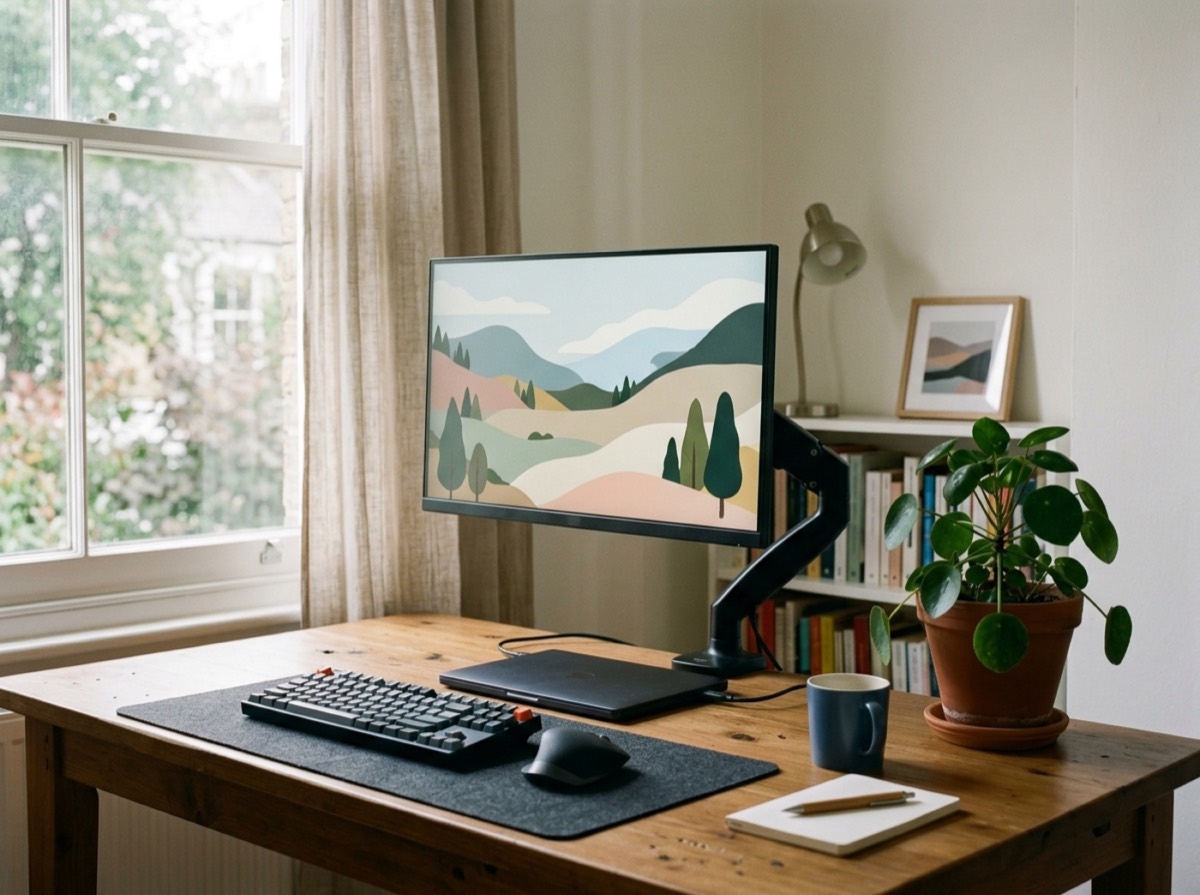
A good stand adjusts in height, tilt and ideally swivel, so the top of the screen sits at or slightly below eye level. If the included stand is basic, check for a VESA mount so you can add a monitor arm. Flicker-free backlights and low blue light modes can make long sessions more comfortable.
Matte screens reduce reflections in bright rooms, while glossy screens look more vivid in controlled lighting. HDR is only worthwhile on bright, high-contrast models; entry-level HDR certification often looks little different from standard mode. Built-in speakers are usually weak, so budget for separate speakers or headphones if sound matters.
Frequently asked questions
What size monitor is best for working from home?
+
A 27-inch monitor suits most home offices, giving room for two windows side by side. On smaller desks, a 24-inch screen works well, and a height-adjustable stand matters as much as size.
Is 1440p or 4K better for a 27-inch monitor?
+
1440p looks sharp at 27 inches and is easier to run at high frame rates in games. 4K gives even crisper text and more detail for photo work, but needs a stronger graphics card for gaming.
What refresh rate do I need?
+
60Hz is enough for basic office work, while 100 to 120Hz feels smoother for everyday use. For gaming, 144Hz or higher is a good target if your computer or console can deliver the frame rates.
Is an IPS or VA monitor better?
+
IPS is better for colour accuracy and viewing angles, making it ideal for work and editing. VA offers deeper blacks and higher contrast, which suits films and dark games.
Can I charge my laptop through a monitor?
+
Yes, if the monitor has a USB-C port with power delivery and your laptop supports charging over USB-C. Check that the monitor's wattage meets your laptop's needs.
Is an ultrawide monitor better than two monitors?
+
An ultrawide gives one seamless screen with no bezel in the middle, which is great for timelines and games. Two monitors cost less, allow different orientations and are easier to arrange around separate tasks.
Choosing a monitor becomes simple once you match the specifications to your use. Pick the size your desk and eyes are comfortable with, choose a resolution that keeps text sharp at that size, select a panel type that suits your work or play, and make sure the stand and ports fit your setup.
How we research: Guides are written from established sources and checked for accuracy. They are general information, not professional advice.
Written by
Bitezine Editorial Team
Rankings, reviews & guides
Our editors research every piece from makers’ documentation, independent tests and owner reports, and update it when products change.