Tech
How to back up your computer: a simple, reliable plan
How to back up your computer properly: the 3-2-1 rule, external drives vs cloud backup, what to include, how often to back up and how to test a restore.
 Bitezine Editorial TeamRankings, reviews & guides 5 min read
 AI generated
Knowing how to back up your computer is the cheapest insurance you can have against a failed drive, a stolen laptop, a spilled drink or ransomware. A good backup plan takes an hour to set up and then runs quietly in the background, so the day something goes wrong becomes an inconvenience rather than a disaster.
This guide walks through the 3-2-1 backup rule, the difference between local and cloud backups, what to include, how often to back up and, most importantly, how to check that you can actually restore your files. The steps apply to Windows, Mac and Linux alike.
Why backing up your computer matters
Every storage device eventually fails. Hard drives have moving parts that wear out, and solid-state drives can fail suddenly without warning. Laptops are dropped, stolen and left on trains. Malware can encrypt your files and demand a ransom, and a simple mistake can delete a folder you needed.
Photos, documents, tax records and creative work are often irreplaceable. Programs and the operating system can be reinstalled, but your own files cannot be downloaded again from anywhere unless you have a copy.
The 3-2-1 backup rule explained
The 3-2-1 rule is the most widely recommended backup strategy for home users and businesses.
- 3 copies of your data: the original on your computer plus two backups.
- 2 different types of storage: for example, your internal drive and an external drive, or an external drive and a cloud service.
- 1 copy off-site: stored somewhere physically separate, such as in the cloud or at a relative's home, so a fire, flood or burglary does not take everything.
A backup you have never restored from is only a hope.
Backup vs sync: why cloud storage is not always a backup
Many people assume that files in a cloud-synced folder are backed up. Syncing keeps the same files identical across devices, which is useful, but it also means that if you delete a file or ransomware scrambles it, the damage is copied everywhere within seconds.
A true backup keeps separate copies and, ideally, older versions, so you can go back to how a file looked last week. Some sync services keep deleted files and version history for a limited time, which helps, but a dedicated backup is more dependable. Use sync for convenience and a proper backup for protection.
How to back up your computer to an external hard drive
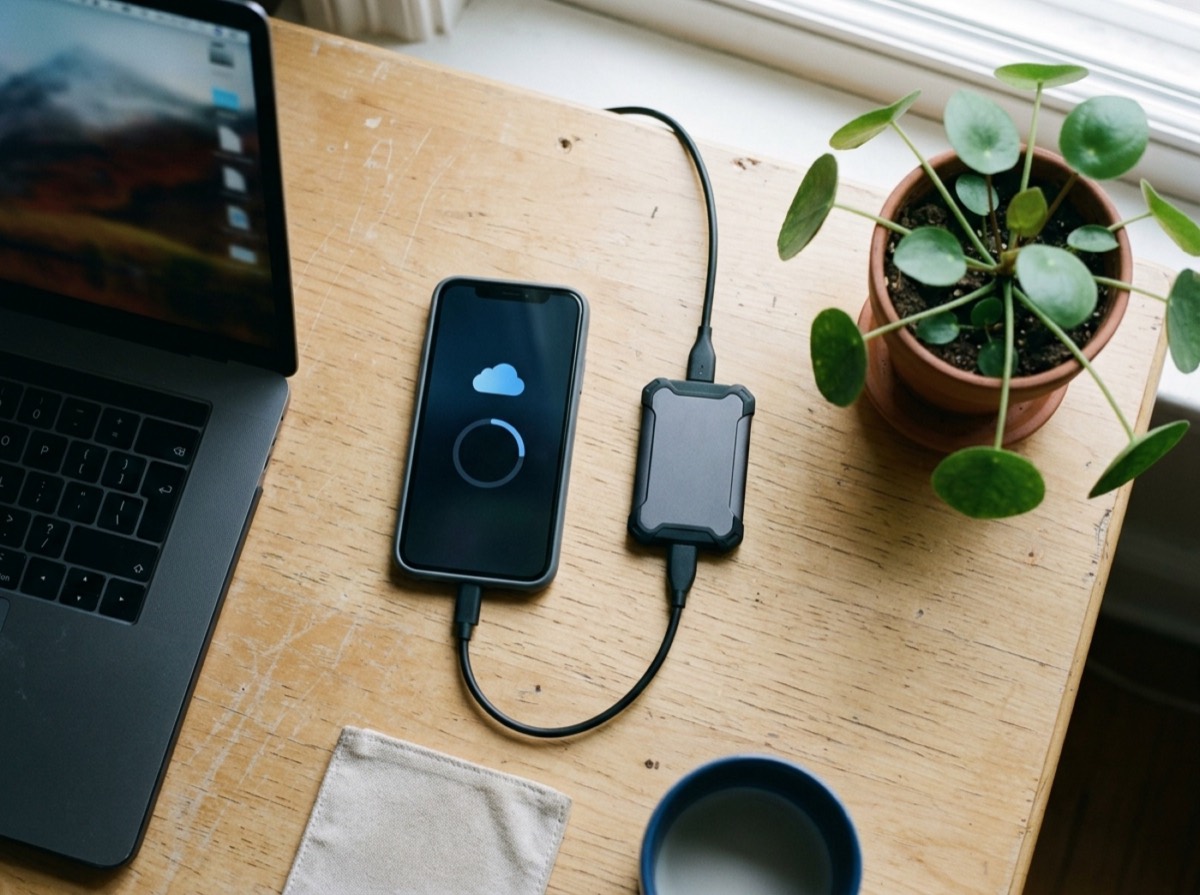
A local backup to an external drive is fast, inexpensive and easy to restore from. Both Windows and macOS include built-in backup features that work with an external drive and keep versions of your files automatically.
- Buy an external drive with at least twice the capacity of the data you want to protect, leaving room for older versions.
- Connect it and open your operating system's backup settings.
- Select the drive as the backup destination and choose which folders to include, or back up the whole system.
- Turn on automatic backups on a schedule, such as every hour or every day.
- Encrypt the backup if the option is offered, especially for a laptop backup you carry around.
- Let the first backup finish completely; it can take several hours.
Cloud backup: your off-site copy
Online backup services install a small program that copies your files to secure data centres over the internet. They satisfy the off-site part of the 3-2-1 rule without you having to move a drive around, and they keep working when you travel.
When comparing services, look for automatic continuous backup, version history and how long deleted files are kept, end-to-end or private-key encryption options, storage limits, and how restores work. For large amounts of data, some providers can post a physical drive to speed up a full restore. Your first upload may take days on a slow connection, so start it early and leave the computer on.
What to back up and how often
At a minimum, back up your personal files: documents, photos, videos, music, desktop files, downloads you want to keep, email archives stored locally, and project folders. Check where programs save their data, since some keep important files in hidden folders.
A full system image copies everything, including the operating system, settings and programs. It lets you restore a working computer onto a new drive in one step, which saves hours of reinstalling. File backups are more flexible for recovering individual documents. Many people use both: a system image now and then, and automatic file backups continuously.
How often depends on how much work you could bear to lose. For most people, daily automatic backups are the minimum, and hourly is better if you work on files all day. Most backup tools use incremental backups after the first full copy, saving only what has changed, so frequent backups use little extra space and time.
Protect backups from ransomware and test your restores
Ransomware can encrypt any drive your computer can reach, including a connected backup drive. Keep at least one copy offline or out of reach: disconnect the external drive after backups, rotate two drives and keep one elsewhere, or choose a cloud service with version history that malware cannot overwrite.
A backup you have never restored from is only a hope. Every few months, pick a few files and restore them to a different folder, then open them to confirm they work. Check that your backup tool reports recent successful runs, and replace external drives that show errors or are several years old.
Frequently asked questions
What is the best way to back up my computer?
+
Follow the 3-2-1 rule: keep your original files plus two backups, on two types of storage, with one copy off-site. A common home setup is an automatic backup to an external drive plus an online backup service.
How often should I back up my computer?
+
At least once a day, automatically. If you create or edit important files every day, hourly or continuous backups are better, and they use little extra space because only changes are copied.
Is cloud storage the same as a backup?
+
Not quite. Cloud sync copies deletions and damaged files to every device, so it can spread mistakes. A backup keeps separate copies and older versions you can restore, which gives better protection.
How big should my backup drive be?
+
Aim for at least twice the amount of data you plan to back up. The extra space holds older versions of files, which is what lets you recover from mistakes or ransomware.
Should I keep my backup drive plugged in all the time?
+
Keeping it connected makes automatic backups easy, but it also exposes the drive to ransomware and power surges. A good compromise is to keep one drive connected and store a second copy offline or in the cloud.
What is a system image backup?
+
A system image is a complete copy of your drive, including the operating system, programs and settings. If your drive fails, you can restore the image to a new one and get your computer back exactly as it was.
Backing up your computer is not complicated, but it only works if it happens automatically and you know it can be restored. Set up a local backup today, add an off-site copy, and schedule a quick restore test every few months. It is an hour well spent.
How we research: Guides are written from established sources and checked for accuracy. They are general information, not professional advice.
Written by
Bitezine Editorial Team
Rankings, reviews & guides
Our editors research every piece from makers’ documentation, independent tests and owner reports, and update it when products change.